

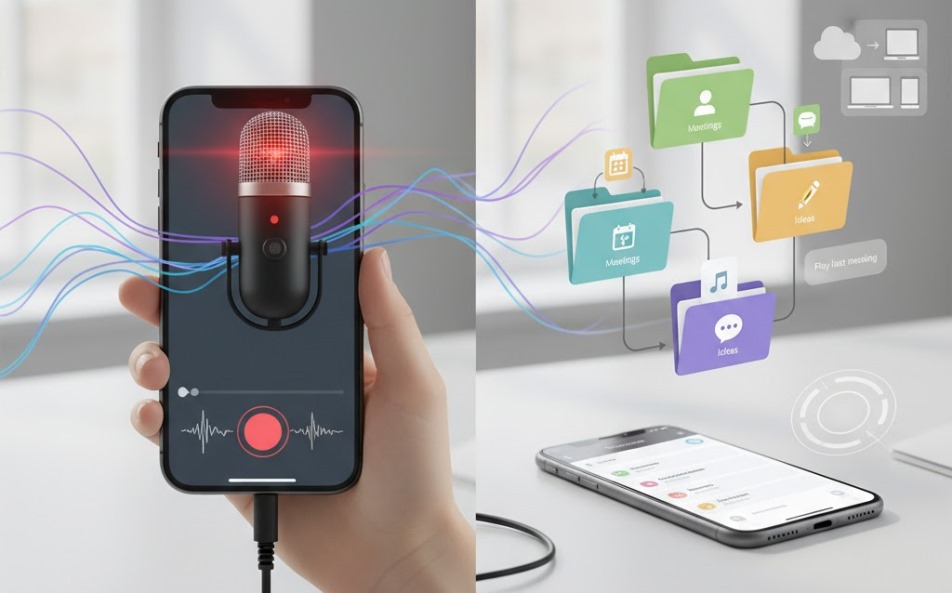
Important conversations happen fast: a project update, a doctor’s instruction, a client requirement, or a family plan. If you rely on memory alone, details slip. The good news is your iPhone already includes practical tools to capture conversations and keep them organized so you can find the right detail later.
Statistics show that over 1.5 billion active iPhones are in use worldwide. (This figure is commonly cited as an estimate of active iPhone users rather than an official Apple “installed base” disclosure.)
Important note: Laws about recording conversations vary by country and even by region. Always get consent when required and be transparent whenever possible.
- What “Recording Conversations” Means on iPhone
- Use Voice Memos for Clear, Fast Conversation Recording
- Turn Recordings into Searchable Notes
- Organize Conversations Like a Pro with Folders, Tags, and Files
- Use Reminders to Track Follow-Ups from Conversations
- Automate Your Workflow with Shortcuts
- Best Practices for High-Quality Conversation Records
- Final Thoughts
What “Recording Conversations” Means on iPhone
On iPhone, “recording conversations” usually falls into two safe, practical categories:
- In-person recordings (meetings, interviews, lectures, or discussions) using a microphone recorder like Voice Memos.
- Conversation capture without audio, such as saving key points as text in Notes, or tracking action items in Reminders.
Some people also want to record phone calls. iPhone support for that depends on your location, carrier rules, and consent laws. Because it’s not universally available as a built-in feature, the most consistent approach is to focus on in-person recording + strong organization.
Use Voice Memos for Clear, Fast Conversation Recording
Record a conversation (in-person)
- Open Voice Memos.
- Tap the Record button.
- Place the iPhone closer to the speaker(s) for clearer sound.
- Tap Stop when finished.
Rename recordings so you can find them later
Right after recording:
- Tap the recording name (often “New Recording”).
- Rename it using a clear format like:
Client Call Summary – 2026-03-03 or Project Kickoff – Ahmed – Q1
This single habit improves search and organization more than anything else.
Trim and clean up
If your recording includes silence or distractions:
- Open the recording.
- Use Edit/Trim to remove unnecessary parts.
- If you see an option to enhance clarity, use it only if it sounds natural after previewing.
Turn Recordings into Searchable Notes
Audio is useful, but text is easier to scan quickly. A smart workflow is: Record → Summarize → Store.
Add a summary in Notes
- Open Notes.
- Create a new note with the same title as your recording.
- Add:
- Who was involved
- Date/time
- Key decisions
- Next steps
- Attach the audio file (if needed) by sharing from Voice Memos into Notes.
This makes your conversation searchable by keywords, even if you don’t replay the audio.
Use a consistent note template
Copy/paste this structure for every conversation:
- People:
- Purpose:
- Key Points:
- Decisions:
- Action Items:
- Follow-up Date:
A repeatable template keeps your information clean and easy to review.
Organize Conversations Like a Pro with Folders, Tags, and Files
Notes folders for quick sorting
Create folders such as:
- Work
- Clients
- Personal
- Family
- Projects
- Learning
Then store your conversation summaries in the right folder. This is the easiest way to keep your iPhone conversation system tidy.
Save audio into the Files app for long-term storage
Voice Memos can be shared into Files, which is great for long projects.
Recommended folder structure in Files:
- Conversations
- 2026
- Work
- Personal
- Projects
- Project A
- Project B
- 2026
Keeping audio in Files also makes it easier to back up and share responsibly.
Use iCloud for access across devices
If you use iCloud, your Notes and Files can sync across iPhone, iPad, and Mac (depending on your settings). This helps when you want to review recordings on a larger screen or keep everything consistent; plus, it is a great way to explore the latest version of your work regardless of which device you have in hand.
Use Reminders to Track Follow-Ups from Conversations
Recording is only valuable if you act on it.
After you summarize:
- Open Reminders
- Create tasks based on action items
- Add due dates and alerts
Example:
- “Send proposal draft to Ali” (Due Friday)
- “Schedule follow-up meeting” (Next week)
- “Confirm budget approval” (Tomorrow 10 AM)
This turns your conversation into a practical plan.
Automate Your Workflow with Shortcuts
Apple’s Shortcuts can speed things up by creating a repeatable system.
A simple, realistic automation idea:
- Start a Voice Memo
- Prompt you to enter a title
- Create a matching Note with your template
- Ask for action items and send them to Reminders
You don’t need anything complicated. The goal is consistency: the same steps every time, with less effort.
Best Practices for High-Quality Conversation Records
- Get consent before recording, especially in professional settings.
- Use clear naming (topic + person + date).
- Summarize immediately while details are fresh.
- Store recordings and notes together (same title, same project folder).
- Keep sensitive recordings secure and avoid sharing widely.
Also Read: How to Free up Storage on iPhone: A Complete Guide
Final Thoughts
With the right iPhone tools, recording and organizing conversations becomes simple, reliable, and searchable. Use Voice Memos to capture audio, Notes to turn it into clear summaries, Files to store recordings in a structured way, and Reminders to ensure follow-ups actually happen. Once you build the habit, your iPhone becomes a powerful system for remembering, organizing, and acting on what matters most.
