
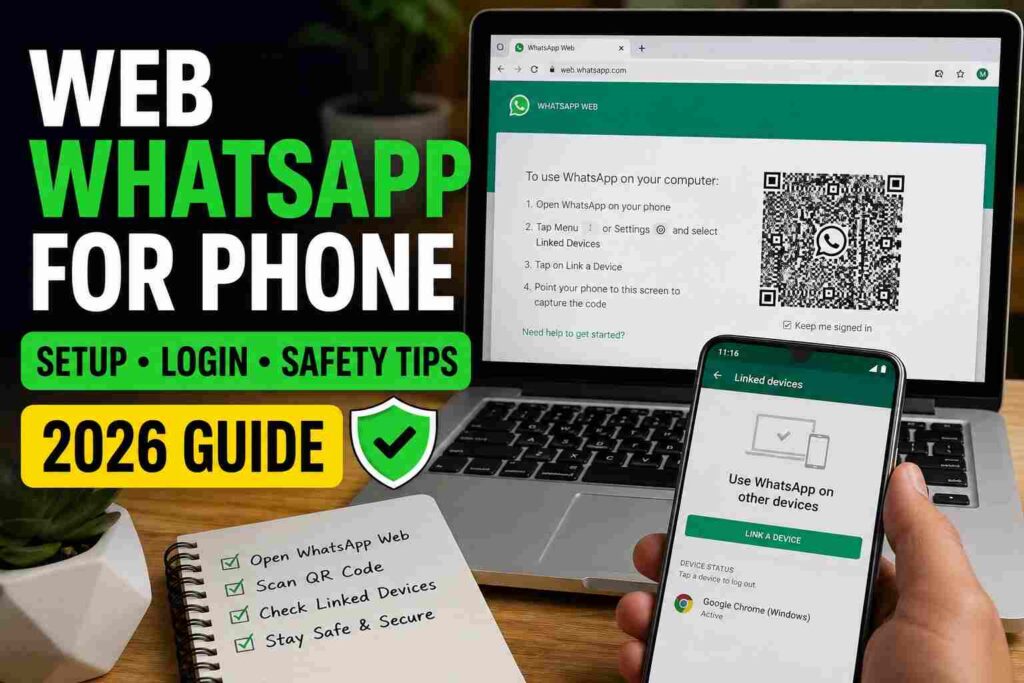
Web WhatsApp for phone lets you open your WhatsApp account on a mobile browser or second phone through Linked Devices. The safest route is simple: use the official WhatsApp Web page, link from your main phone, and review the device list afterward. Skip random mirror apps, shared phones, and QR codes you did not request from someone else online today.
- What Web WhatsApp for Phone Actually Means
- Best Method: Mobile Browser or Second Phone?
- How to Use Web WhatsApp for Phone
- How to Link with a Phone Number Instead
- Safety Rules Before You Scan Any QR Code
- Why Web WhatsApp May Not Work on Your Phone
- Common Mistakes to Avoid
- Best Practice Checklist
- Final Advice
- FAQs
What Web WhatsApp for Phone Actually Means
Web WhatsApp for phone does not create a new WhatsApp account. It gives another device access to your existing account.
That device can be a mobile browser, tablet, or spare phone. Your main phone remains the account owner.
If you are using a second phone or tablet, Linked Devices is the correct route. If you are using your own main phone, the app is better.
Best Method: Mobile Browser or Second Phone?
Pick the method by purpose, not by habit. A temporary browser session and a second-phone setup are not the same thing.
| Situation | Better Choice | Firm Advice |
|---|---|---|
| Main phone only | WhatsApp app | Do not force a web login |
| Spare phone | Linked device | Best for regular use |
| Tablet browser | WhatsApp Web | Use desktop mode |
| Public phone | Avoid login | Too much risk |
| Business support phone | Linked control | Review access often |
If the device is not yours, do not link it.
How to Use Web WhatsApp for Phone
Open your browser and go to the official WhatsApp Web page. If the page pushes you toward the app, turn on Desktop Site.
Now open WhatsApp on your main phone. Go to Linked Devices, tap Link a Device, and scan the QR code shown in the browser.
After the scan, wait for your chats to load. Then check the linked device name. If it looks strange, log it out immediately.
How to Link with a Phone Number Instead
The phone-number option helps when the QR code will not scan. It also helps when the camera is damaged or the screen is too small.
On your primary phone, navigate to the Linked Devices menu and select the option to pair a new device. If you see Link with phone number instead, enter the code shown on the other device.
Only approve a login you started yourself. If a stranger or “support agent” tells you to enter a code, stop.
Safety Rules Before You Scan Any QR Code
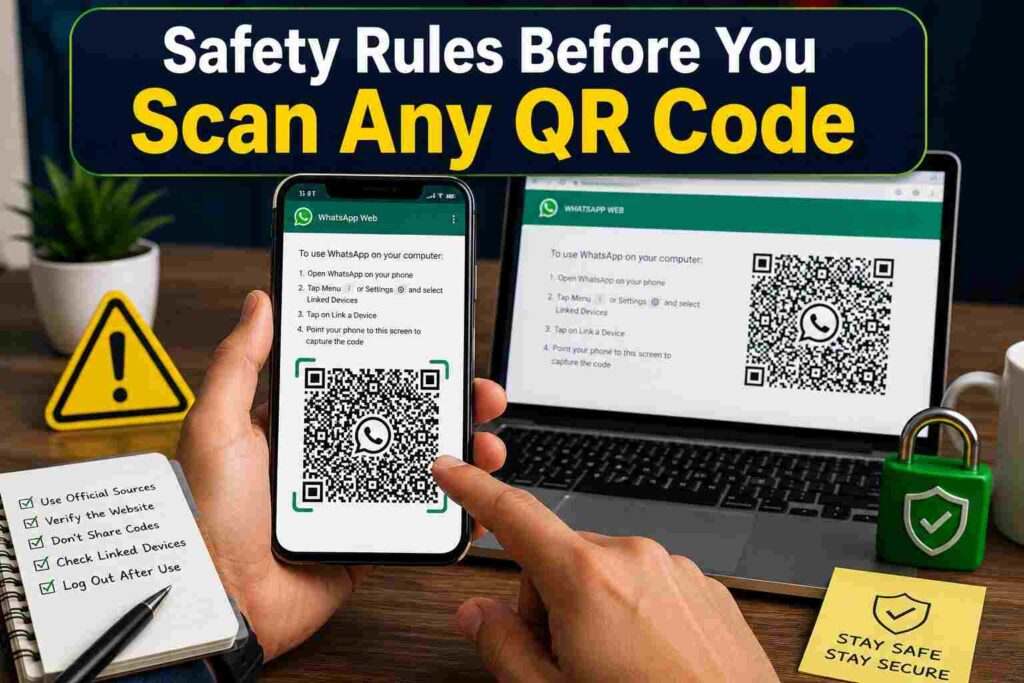
A WhatsApp Web QR code is not decoration. It is a key to your messages.
Scan only the code shown on the official login page. Never scan a code sent as an image, posted in a group, or displayed on a random site.
After linking, open Linked Devices again. You should recognize every device. If you do not, log out the unknown device immediately.
Why Web WhatsApp May Not Work on Your Phone
If the QR code is missing, the browser is probably showing the mobile page. Turn on Desktop Site, refresh, and avoid in-app browsers.
If the QR code appears but will not scan, increase screen brightness. Clean the camera lens and keep the full code inside the scanner box.
If messages do not load, check both internet connections. Weak mobile data can make WhatsApp Web look broken when it is only delayed.
If the browser keeps logging out, clear cookies and try again. Avoid private browsing because it may delete login data.
Common Mistakes to Avoid
Do not install unknown “Whats Web” or “Whatscan” apps for quick access. Most users do not need them.
Do not stay logged in on someone else’s phone. One forgotten session can expose chats, media, customer messages, and verification alerts.
Business users should be stricter. If staff use linked devices, assign access clearly, remove old devices, and review sessions weekly.
Also Read: Anonymous Instagram Story Viewer: Browse IG Safely in 2026
Best Practice Checklist
Use the official web page. Use a trusted browser. Turn on Desktop Site only when the mobile page blocks the QR code.
Link from your own main phone. Confirm the device name. Disconnect the active session once it is no longer required.
Keep your phone locked with a strong passcode or biometrics. If someone can unlock your phone, they may approve a linked device.
Check Linked Devices every week. This is not paranoia. It is basic account hygiene.
Final Advice
Use web whatsapp for phone only when it gives clear value: second-phone access, tablet use, or a short browser session. Do not turn it into a shortcut on unsafe devices. The right setup is the one you control, review, and close when finished. Link carefully, check Linked Devices, and remove anything you no longer use right away every single time.
FAQs
Can you open WhatsApp Web on the very same device?
Yes, but it is rarely useful. The normal WhatsApp app is cleaner on your main phone.
Can I use WhatsApp Web on a second phone?
Yes. Link the second phone from Linked Devices and review the device name after login.
Is Web WhatsApp for phone safe?
It is safe when you use the official page, scan your own QR code, and remove unknown devices.
Why does WhatsApp Web open the app instead?
Your browser is loading the mobile version. Turn on Desktop Site and refresh.
