
Microsoft Outlook uses Personal Storage Table (PST) files to store emails, attachments, contacts, calendar entries, and other mailbox data. These files are useful for archiving emails and keeping mailbox data locally, but they can become damaged or inaccessible. Unexpected system shutdowns, storage errors, software conflicts, and large or overgrown files can prevent Outlook from opening a PST file correctly. Users may see error messages, missing emails, application freezes, or problems accessing archived messages. Microsoft’s built-in Inbox Repair Tool, ScanPST.exe, can help with some issues, but it may not resolve every case of corruption.
When ScanPST.exe cannot repair a damaged PST file, many IT admins turn to a dedicated PST repair solution. That is why we are taking a closer look at Stellar Repair for Outlook, a PST repair tool that restores mailbox data from damaged Outlook data files. It is available as a desktop application and a browser-based online service. Your choice depends on the file size, your privacy needs, and the amount of data you want to recover.
In this review, we look at the features of both versions, explain how each one works, compare pricing and limitations, and give a verdict on which one suits which situation.
- Overview of Stellar Repair for Outlook
- Key Features of Stellar Repair for Outlook (Desktop)
- System Requirements and Supported Outlook Versions
- How to Repair a PST File Using Stellar Repair for Outlook (Desktop)
- How to Repair Corrupted PST Files Using Stellar Online PST Repair
- Online vs Desktop: Which Version Should You Choose?
- Pricing and Available Editions
- Pros and Cons of Stellar Repair for Outlook
- Who Can Benefit from Stellar Repair for Outlook?
- Final Verdict: Is Stellar Repair for Outlook Worth Trying?
- Frequently Asked Questions
- 1. Can Stellar Repair for Outlook repair a corrupted PST file?
- 2. Can I repair a PST file online for free?
- 3. Does the online service need Microsoft Outlook?
- 4. Can I preview recovered emails before saving them?
- 5. Does the free desktop trial save the repaired data?
- 6. Can it recover deleted emails and handle large files?
- 7. Which formats can the desktop version save to?
- 8. Is every email guaranteed to be recovered?
Overview of Stellar Repair for Outlook
Stellar Repair for Outlook scans damaged or inaccessible PST files, reconstructs recoverable mailbox data, and lets you preview the results before saving. According to Stellar, all repair operations run in read-only mode, leaving the original PST file unchanged.
The desktop application is designed for users who prefer to repair files locally, handle large PST archives, or access the extra export options available in higher editions. The online service provides a simpler browser-based process with no installation required.
The main differences are where the repair happens and the limits that apply. According to Stellar’s online page, the free service handles one PST file of up to 500 MB, and the Premium plan handles one file of up to 5 GB at $29.99 per file. Priced at $79, the Professional desktop edition places no limit on PST file size.
Key Features of Stellar Repair for Outlook (Desktop)
Repair of Corrupted PST Files
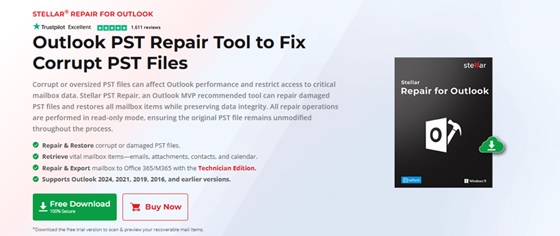
The desktop software scans damaged PST files and rebuilds the accessible mailbox data. The tool is designed to handle unreadable data files, damaged file structures, and errors that prevent Outlook from accessing a mailbox. It is still sensible to keep a backup copy of the damaged file before you start.
Recovery of Mailbox Items
A PST file holds more than emails. Depending on what remains recoverable, Stellar can restore emails and their attachments, contacts, calendar entries, tasks, notes, and journal entries. Emails removed from the Inbox or cleared from Deleted Items may also be recoverable. The scan results highlight these messages in red, making them easy to identify and select. According to Stellar, recovery is possible only if the deleted data has not been overwritten. Severe file damage can limit what is retrieved, so no repair tool can promise to restore every item.
Preview Before Saving
The desktop software shows the scanned mailbox as a folder tree, so you can inspect emails and other items before deciding what to save. You can scan files and preview recoverable content for free, but a paid license is required to save the repaired data.
Large and Password-Protected PST Files
Stellar states that the desktop software has no file-size limit and can repair PST files of 50 GB or more. The time needed to complete a scan varies with the PST file’s size, its level of corruption, and your computer’s memory and storage performance. According to Stellar, the software also supports the repair of encrypted and password-protected PST files.
Multiple Saving Formats and Advanced Options
Every desktop edition supports exporting recovered data in PST, EML, MSG, RTF, HTML, and PDF formats.
PST is the right choice for restoring data into Outlook, while EML and MSG suit individual messages, and HTML and PDF suit viewing or sharing outside Outlook. The Technician and Toolkit editions add MBOX output, PST splitting, and PST compaction. Technician also exports to Office 365, and Toolkit exports to Live Exchange or Office 365 and adds OST to PST conversion.
System Requirements and Supported Outlook Versions
| Component | Requirement |
| Operating system | 64-bit Windows 11, 10, 8.1 or 8 |
| Processor | Intel-compatible x64 processor or Snapdragon |
| RAM | 8 GB minimum, 16 GB recommended |
| Free disk space | 250 MB for installation files |
| Outlook versions | Outlook 2024, 2021, 2019, 2016 and earlier |
| Licence | Single system |
Is Outlook required? The scan and preview do not depend on Outlook opening the damaged file. However, Stellar states that a licensed copy of Microsoft Outlook must be installed on the same computer to save the repaired data to a new PST. There is no macOS or Linux version of the desktop software.
With the online service, you can repair files in modern browsers such as Chrome, Firefox, Edge, and Safari without having Outlook installed.
How to Repair a PST File Using Stellar Repair for Outlook (Desktop)
- Download and install. First, create a backup of the damaged PST file. Then download the software from its official product page and install it on a compatible Windows PC.
- Select the PST file. In the Select Outlook Data File for Repair window, choose a file from your Outlook profile, or browse to a PST stored elsewhere. Use the Find option to search a drive if you are unsure where the file is stored.
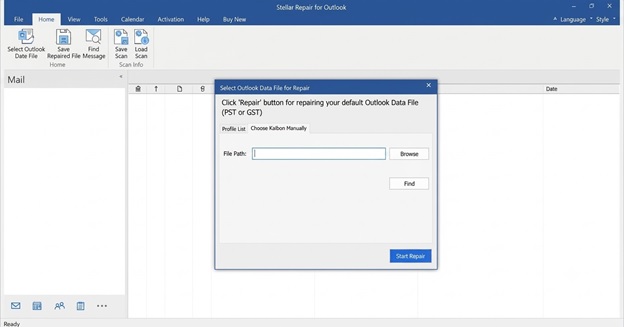
3. Start the repair. Click Repair and let the software process the file. The time depends on the file size and the severity of the corruption.
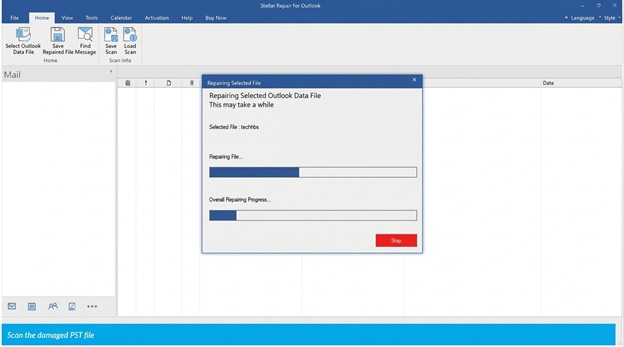
4. Preview the recovered data. Browse the folder tree and open sample emails, including some with attachments. Deleted items appear in red. A completed scan does not prove that everything was recovered, so compare the preview with what you know the mailbox should contain.
5. Save the repaired file. Close Outlook before saving to avoid being prompted to restart the process. Then select Save Repaired File, choose an output format, and pick a destination with enough free space. Save the repaired data separately from the original file.
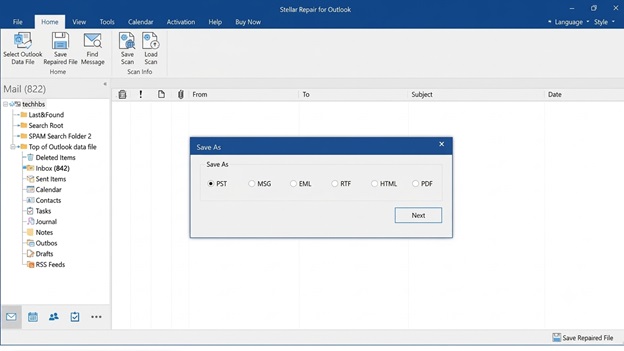
6. Verify in Outlook. Open the saved PST and check the folder structure and a sample of emails, attachments, contacts, and calendar entries.
How to Repair Corrupted PST Files Using Stellar Online PST Repair
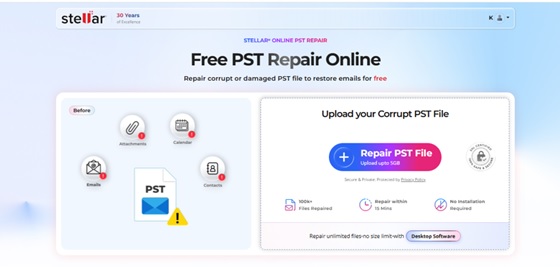
You can repair a PST file directly in your browser through the online service, with no software installation required. It processes one PST file at a time.
- Open the page and sign in. Go to the Stellar Online PST Repair page. You need to sign in with a Google account or an email address before uploading a file.
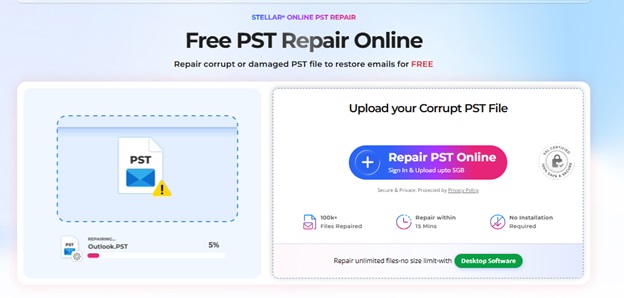
2. Upload the PST file. Click Repair PST File and choose the damaged PST. Wait for the upload to finish before closing the browser tab. PST files can hold confidential correspondence, so upload only files you are authorized to process.
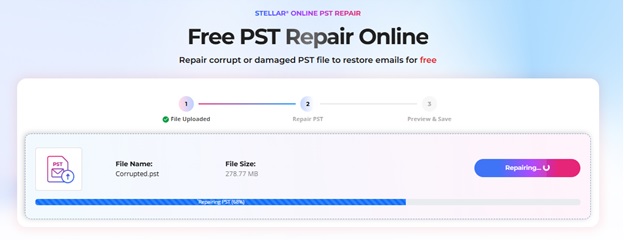
3. Wait for the repair. The service repairs the file automatically. According to Stellar, most files can be repaired in 15 minutes or less, but the time required varies with file size, corruption severity, and your internet connection.
4. Preview the result. Select Preview to open an HTML overview of the repaired folders and their item totals. Individual messages are not displayed in this view.
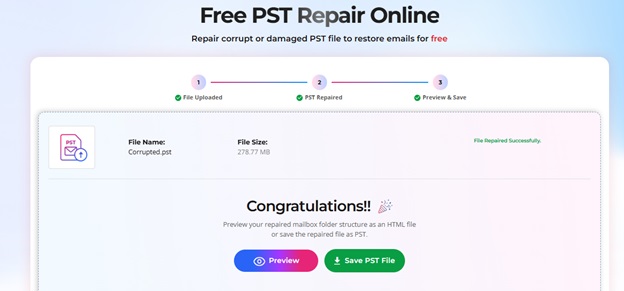
5. Download the repaired PST. Click Save PST File. The free plan covers a file up to 500 MB, and Premium covers a file up to 5 GB. The repaired file stays available for 24 hours on the free plan and 48 hours on Premium, after which Stellar deletes it automatically.
6. Verify in Outlook. Before using the downloaded PST, open it in Outlook and verify that important folders, emails, and attachments are intact.
Online vs Desktop: Which Version Should You Choose?
| Online PST Repair | Desktop software | |
| Installation | None, runs in a browser | Windows software |
| File size | 500 MB free, 5 GB Premium | No limit stated |
| Files at a time | One | Batch repair supported |
| Where repairs are performed | Stellar’s servers | Your personal computer |
| Outlook needed | No | Yes, to save the repaired PST |
| Preview | Folder structure and item counts | Folder tree with emails and other items |
| Output | PST | PST, EML, MSG, RTF, HTML, PDF and more by edition |
| Cost | Free to 500 MB, then $29.99 per file | From $79 |
For multiple files, the total cost adds up: three Premium repairs come to $89.97, exceeding the $79 price of the Professional edition.
Pricing and Available Editions
These prices were listed on Stellar’s official pages at the time of writing. Check the latest prices and offers before purchasing, as both are subject to change.
| Edition | Price | What it adds |
| Online Charge | $0 | One PST file up to 500 MB |
| Online Premium | $29.99 per file | One PST file up to 5 GB |
| Desktop Professional | $79 | Repair PST files, recover mailbox items and deleted emails, preview the results, and export data in PST, EML, MSG, RTF, HTML, or PDF format. |
| Desktop Technician | $149 | Everything in Professional, plus MBOX output, Office 365/Live Exchange export, PST split, and PST compact |
| Desktop Toolkit | $199 | Everything in Technician, plus Live Exchange export, OST to PST conversion, and additional Outlook tools |
The desktop license covers a single system. Confirm that your edition includes the output format or export option you need before buying.
Pros and Cons of Stellar Repair for Outlook
Pros
- Offers both a browser-based service and desktop software.
- Lets you review recoverable content before saving or downloading it.
- Restores mailbox content, including emails, attachments, contacts, calendar entries, tasks, notes, and journals, with support for recovering deleted messages.
- The desktop software has no stated file-size limit and works in read-only mode on the source file.
- Supports password-protected PST files.
- Higher editions add Office 365 and Live Exchange export and PST management.
Cons
- The online service supports PST files up to 5 GB, with free repairs limited to a single file of 500 MB or less.
- The online preview shows folders and item counts, not individual messages.
- Saving from the desktop software needs a paid license and a licensed Outlook installation.
- The desktop software is Windows only and needs 8 GB of RAM.
- Organizations with strict confidentiality requirements may find online mailbox uploads unsuitable.
- Complete recovery cannot be assured, as some items in damaged files may remain unrecoverable.
Who Can Benefit from Stellar Repair for Outlook?
Individual users who cannot open an archived PST, professionals who need older correspondence, and IT teams who handle Outlook data-file corruption can all benefit. The Technician and Toolkit editions also suit admins who need to move recovered mailboxes into Microsoft 365 or Exchange. If you can still access the file, create a backup before running ScanPST.exe. Consider a dedicated repair tool if the problem remains unresolved.
Final Verdict: Is Stellar Repair for Outlook Worth Trying?
Yes, if the PST file remains inaccessible after using ScanPST.exe. Stellar Repair for Outlook creates a repaired copy while leaving the original file unchanged. Its preview lets you assess the recovered content before paying for or downloading the repaired file. Both versions of the product follow that approach, and the right pick comes down to the file in front of you.
Choose the online service when you have one PST file under 500 MB, because the repair is free, nothing needs to be installed, and it works from any computer with a browser. It is also a reasonable choice up to 5 GB if you accept the $29.99 fee and are comfortable uploading the mailbox.
Choose the desktop software when the file is larger than 5 GB, the mailbox is confidential, you need deleted emails back, you want to save only part of the mailbox, or you have several files to repair. For a higher upfront price, you get local processing, no file size limit, a more detailed preview, and a wider range of export options.
For most people, a sensible order is to try the free online repair first if the file qualifies, and otherwise to run the desktop trial, check the preview, and buy a license only if the results look right. Either way, keep a backup of the original PST and verify the repaired file in Outlook before you rely on it, because a completed scan is not the same as complete recovery.
Frequently Asked Questions
1. Can Stellar Repair for Outlook repair a corrupted PST file?
Yes. It is designed to scan and repair corrupted or damaged PST files. The result depends on the condition of the file and the data that remains recoverable.
2. Can I repair a PST file online for free?
Yes, for one PST file up to 500 MB. The Premium plan covers one file up to 5 GB at $29.99 per file.
3. Does the online service need Microsoft Outlook?
No. It works in a supported browser and does not need Outlook to repair the file. You will still want Outlook to open the repaired PST afterwards.
4. Can I preview recovered emails before saving them?
Yes. The desktop software previews the recovered folders and items before you save. The online service shows the repaired folder structure and item counts before you download.
5. Does the free desktop trial save the repaired data?
No. The trial scans and previews recoverable items. A paid licence is needed to save them.
6. Can it recover deleted emails and handle large files?
The desktop software can recover emails deleted from the Inbox or Deleted Items, provided they have not been overwritten, and it has no stated file-size limit. This service will manage files of up to 5 gigabytes.
7. Which formats can the desktop version save to?
All editions save to PST, EML, MSG, RTF, HTML, and PDF. The Technician and Toolkit editions add MBOX. The online service returns a PST file.
8. Is every email guaranteed to be recovered?
No. Neither a successful scan nor a preview guarantees complete recovery. Inspect the results and verify the saved data before relying on it.
