

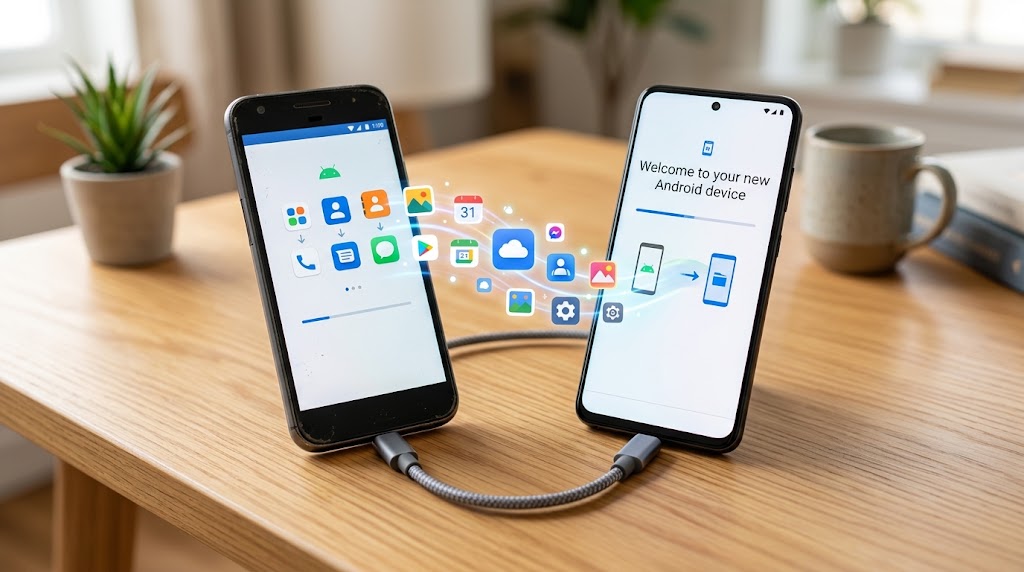
Switching to a new Android phone can be an enjoyable experience, but being hasty could result in missing photos, texts, or login codes. In order to set up the new gadget accurately, make use of Android’s built-in welcome transfer function, without turning off the old phone until there is absolute confirmation about data transfer success.
Whether you want to go for a wired USB-C connection or go the wireless route for transferring data, this how-to article is going to explain everything you need to know about it.
- Prepare First: The Five-Minute Safety Check
- How to Set Up Device During Android’s Welcome Process
- What Transfers, and What Needs Special Handling?
- Cable or Wireless Transfer: Which Is Better?
- Manufacturer-Specific Transfer Apps
- Does “OK Google, Set My Device” Work?
- Verify Your New Phone Before Resetting Anything
- The Rule That Prevents Regret
Prepare First: The Five-Minute Safety Check
Ensure that both phones have enough battery power and the Wi-Fi connection is stable. The battery power should be more than 60%. Upgrade the older phone, create a new backup of your Google data, and confirm that you know the password to your Google account and screen lock.
The old device should not be wiped or returned. When configuring a new device, people tend to overlook transferring their authenticator applications, bank authorizations, eSIM data, secure folder information, and encrypted chat keys. Do not immediately deactivate your old mobile phone because there may be some secured sites where you can still log into.
Also Read: How to Reconnect the Chromecast with Google TV Voice Remote
How to Set Up Device During Android’s Welcome Process
1. Initial Setup
Turn on the new device, select the right language and region settings, install the SIM or eSIM, and connect to a reliable Wi-Fi network.
2. Initiate Data Transfer
When the prompt appears on your screen asking to Copy apps & data, tap Next (do not select Don’t copy).
3. Authorize Connection
Unlock your old device and select Agree or Confirm when prompted to allow the two phones to link. Using this basic configuration procedure is the safest way to move your data to your new Android phone.
4. Choose Your Connection Method
Wired Transfer: Connect both devices using a compatible USB-C cable, select your Google Account, and choose the specific data categories you wish to transfer.
Wireless Transfer: Bring both devices close together, turn on Bluetooth, keep both screens unlocked, and confirm the matching number, shape, or QR Code shown on both displays.
What Transfers, and What Needs Special Handling?
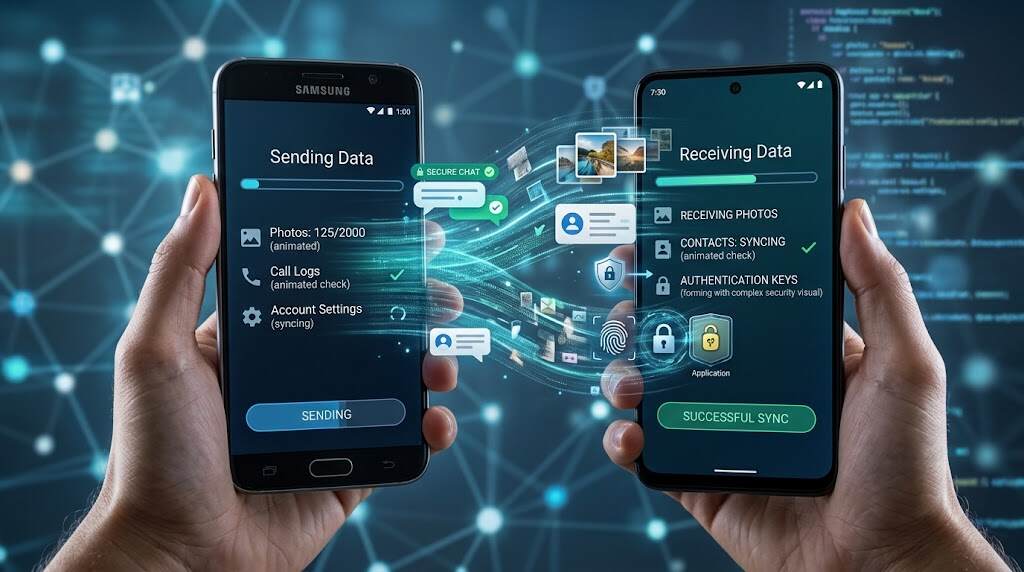
The process of moving the copies of apps and data will help move contacts, call log, text messages, compatible apps, Wi-Fi info, device settings, and photos backed up. The results vary depending on the particular app, the version of Android used, the device manufacturer, and storage of the items. The completion of the process is a checkpoint and not absolute confirmation that all the items have been successfully moved.
Password, downloads, work profile, access to bank accounts, authentication code, and chat logs might require personal involvement. The WhatsApp transfer should be initiated in the WhatsApp app and confirmed by checking recent chats on the new device. Before transferring your information from your old mobile phone, you should review the security settings for your confidential banking and chatting applications.
Cable or Wireless Transfer: Which Is Better?
Use cable for file transfer when you need to transfer a large collection of photographs, have slow-speed internet or want a quick transfer process. In case you do not have any adapter, use wireless transfer for your data and in case you are using mostly cloud storage. Both methods will not fix your out-of-date Google backup, so first make sure about the crucial files.
Consider two practical situations. A person moving years of family videos must use cable, charge devices, and view the transferred videos. A tourist whose contacts and pictures are already synced may create a wireless connection and then let the cloud files be restored.
Manufacturer-Specific Transfer Apps
While Google’s native welcome transfer handles baseline data, manufacturers of devices usually offer specific tools to make the transfer more complete. These include, for example, Samsung’s Smart Switch, the Pixel Data Transfer Tool, and OnePlus’ Clone Phone, which are designed to transfer system-specific settings, customized home screen grids, and proprietary application data, respectively. If an upgrade is being done between devices from the same brand, it is important to use the manufacturer’s native transfer tool in addition to a cloud backup.
Does “OK Google, Set My Device” Work?
Many users often opt for the voice command “OK Google, set up my device” to ensure that the Assistant handles the entire transfer process. This doesn’t always work out, as sometimes it shows the nearby devices option or how-to setup, but it’s not a reliable method for moving.
However, in case “ok Google set my device” doesn’t work, you should go to your Settings page and type “set up nearby device,” or just reboot your phone. Voice shortcuts can never be considered as a replacement for authentication or encryption or user approval.
Also Read: How to Configure Your Google Assistant: A Comprehensive Guide
Verify Your New Phone Before Resetting Anything
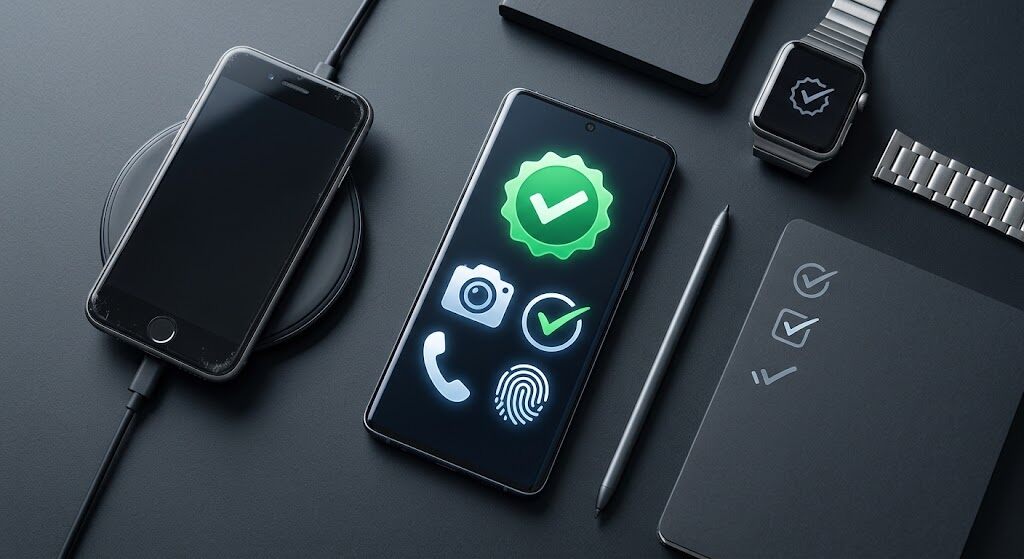
Once you have completed the setup of your phone, you need to carry out several tests and configurations including making a call, sending a text message, looking at some pictures you have taken recently, accessing your contacts and authenticating yourself into required applications. Test your email service, your maps application, Bluetooth, voicemail, calendar services, payments and emergency information. Reconfigure your biometric unlock method using either fingerprint or facial recognition.
The presence of an “empty gallery” usually means that your pictures are not yet synced, linked to another Google Account, or kept on the memory card of the previous phone. There is an icon for the application on the home screen, but a login is not needed. In case synchronization does not work, try doing a reset of the devices, upgrade your software, connect with the help of cable, turn off battery optimization, and start file transfer via Wi-Fi.
If you chose not to go for migration, then look for the terms “backup,” “restore,” “transfer,” or “bring data” in Settings. For important files, create an additional copy in your computer or reliable cloud folder. Beware of random transfer applications requesting excess permissions.
The Rule That Prevents Regret
The goal is not just the basic setup of the device, but ensuring complete data integrity before wiping the original. During the device set-up process using your previous phone, the best thing to do is ensure you use the official Android setup wizard so that your Google backup works correctly, all important files get transferred, and your old phone gets wiped. This follows the procedure that I have for setting up my phone and preventing unnecessary losses.
