
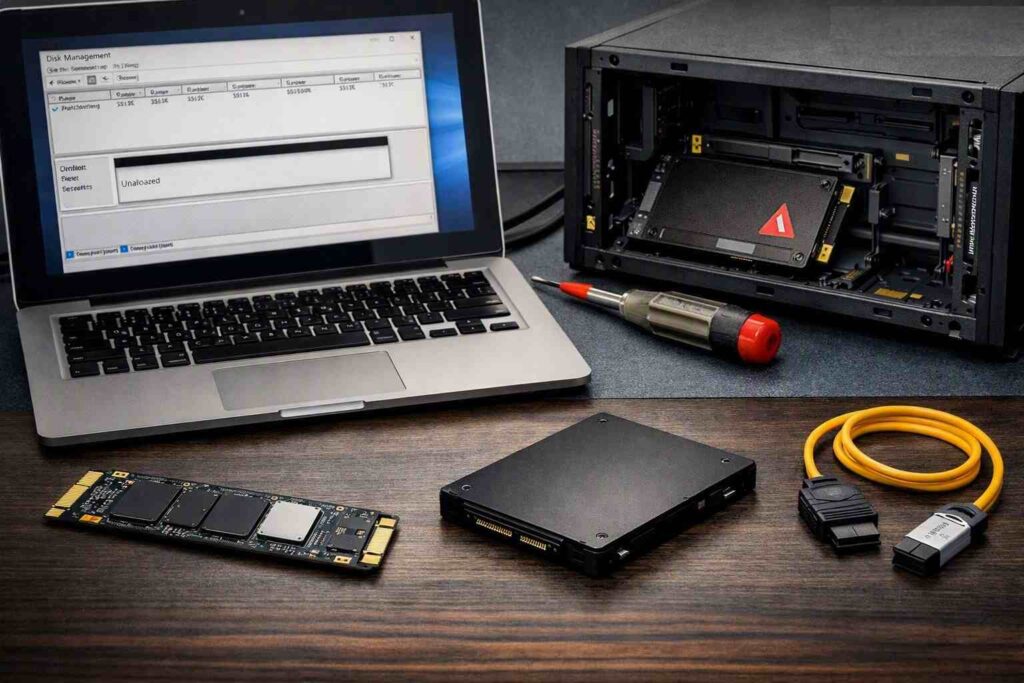
There’s always a moment of silence after installing a fresh drive, when the fans hum, Windows starts, File Explorer launches—but the brand-new SSD doesn’t show up. “Not showing up” is the number-one problem right after build, and here’s the good news: the hardware is almost always perfectly fine. One guy from r/buildapc put it succinctly, pointing out that every single guide mentions going to disk management and initializing the drive, which “is literally not showing up AT ALL.”
- Step 1: Ask the Firmware First, Windows Second
- Step 2: The M.2 Lane-Sharing Trap Nobody Warns You About
- Step 3: Initialize It — Brand-New Drives Ship Completely Blank
- Step 4: Drive Letters, Weak Power, and the External SSD Not Showing Up Problem
- Step 5: Controllers, VMD, and the Storage Spaces Ambush
- The Bottom Line
- Common Questions
Step 1: Ask the Firmware First, Windows Second
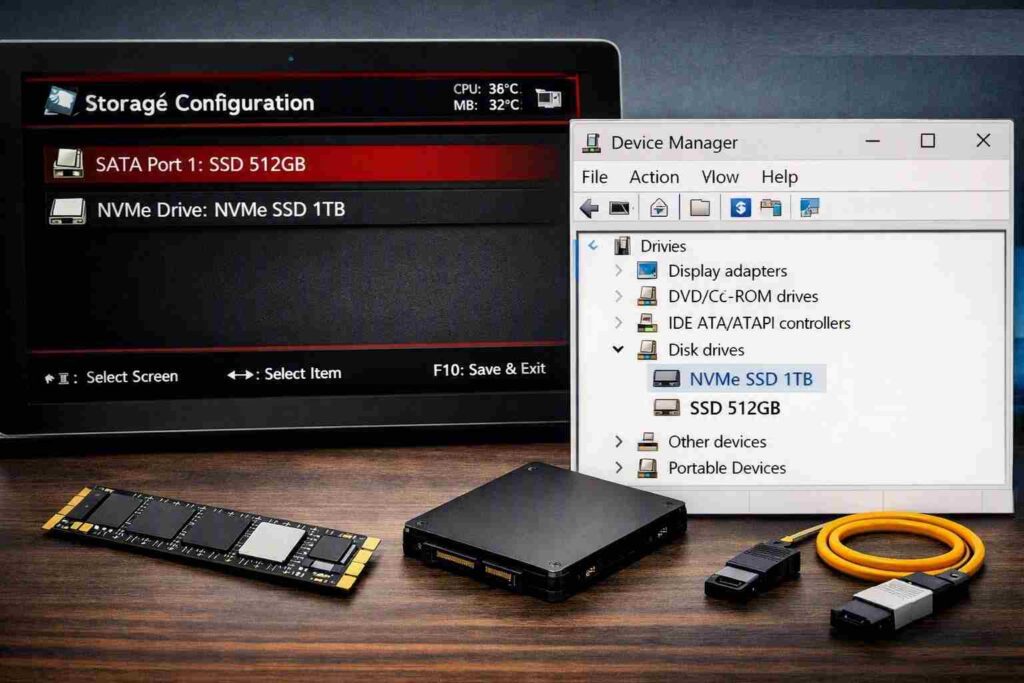
Before pointing fingers at the operating system, be sure that the motherboard detects the hardware. Restart the computer, press the Delete or F2 key, and look for your model number under Storage Configuration or NVMe Configuration. There’s just one question, but its two solutions are worlds apart: why can’t I see my SSD? If the BIOS sees the drive, your hardware is healthy, and the fix lies inside Windows configuration. If the SSD is not detected by the BIOS, no software magic will bring it back to life. Now open Device Manager and go to Disk drives.
Step 2: The M.2 Lane-Sharing Trap Nobody Warns You About
Slot conflicts are a silent killer when it comes to an SSD not being detected. As there is only a limited number of PCIe lanes provided by motherboards, connecting a second or even third M.2 drive silences SATA ports and vice versa. For example, on ASUS X670E boards, M.2_3 shares the bus with PCIe x16_3, and many users were able to solve their NVMe drive detection issues by switching it from M.2_3 to M.2_1. A user of a Samsung 990 Pro drive mentioned on MSI B650 Carbon forum that his device “works flawlessly in M.2_2 and M.2_3 slots” but does not work in M.2_1.
Step 3: Initialize It — Brand-New Drives Ship Completely Blank
A newly bought SSD will have no partition table created yet, hence Windows won’t recognize it – this is what usually happens when a brand new SSD does not show up. Open the Disk Management utility by pressing Win + X and selecting Disk Management. The disk of concern is located at the bottom and marked “Disk 1 – Not Initialized,” with a black “Unallocated” bar shown. Right click on the disk name and choose “Initialize Disk.” In addition, make sure that GPT is selected as the partition style, as per the recommendation by Microsoft that “GPT is the current UEFI partitioning scheme that is required for drives larger than 2 TB.” Finally, right click on the “Unallocated” bar, choose “New Simple Volume,” allocate a drive letter, and format it to NTFS.
Step 4: Drive Letters, Weak Power, and the External SSD Not Showing Up Problem
External SSD detection failures usually come down to simple connection or power issues. If the volume appears in Disk Management but not in This PC, right-click it on the volume, select Change Drive Letter and Paths, click on Add, and allocate a letter which is not assigned to any mapped network location. Other times, the problem might simply stem from electrical supply problems.
As discussed in a Tom’s Hardware forum in January 2026, the SN850X SSD was detected only with powered USB hubs and not inside most of the USB enclosures. Possible other measures include checking another USB cable, using a motherboard port in the back, and hooking up to a different computer. Unpowered enclosures are known to encounter voltage drops when used with NVMe SSDs more often than expected.
Step 5: Controllers, VMD, and the Storage Spaces Ambush

Unable to locate your SSD? Here are two possible reasons. First, the controller mode can be the problem – as one community moderator at Intel said, “there’s no need for vendor-specific driver since it’s embedded in Windows 11”. However, if Intel VMD or RST is turned on without a RAID disk, NVMe SSDs are not supposed to appear – turn off VMD in UEFI, or load IRST driver.
Another, more cunning reason is associated with Storage Spaces – according to Dell documentation, Storage Spaces can unexpectedly add another disk into the current pool, meaning that the disk is visible both in BIOS and Device Manager but invisible in Disk Management. In this case, go to Storage Spaces and click Prepare for removal.
Also Read: What Is DRAM in SSDs and How Does It Affect SSD Performance?
The Bottom Line
Across numerous threads on online forums, one thing stands out: An undetected new SSD is almost always a configuration or communication error—not a dead drive. To check whether the drive is visible in the BIOS gives you an immediate indication of whether you have a problem with hardware or Windows. Lane Sharing explains the mysterious cases; Initialization will be useful for the beginners; and drive letters or lack of power account for most of the cases of undetected external SSDs. Following these five steps one by one, you will be able to solve the problem free of charge. After testing on another computer and another port with a working enclosure, the drive will be covered under the warranty.
Common Questions
Why doesn’t my SSD appear in Windows, but my BIOS detects it?
Typically because the drive is uninitialized—the OS doesn’t support drives without a partition table. Simply initialize the drive as GPT and make a simple volume.
Which one should I use, GPT or MBR?
GPT should be your option—it’s mandatory for UEFI booting and supports drives over 2 TB; the MBR, with its four-partitions limitation, lacks any benefits.
New SSD doesn’t appear in Disk Management at all—what to do?
Check for Action > Rescan Disks, Storage Spaces, switch the M.2 slot and try the drive on another PC to distinguish motherboard issues from drive problems.
Does BIOS update work on undetected NVMe SSD?
Usually yes, especially for Gen4/Gen5 drives on older boards. Sometimes BIOS updates can contain bugs that prevent drive recognition; check the release notes.
