
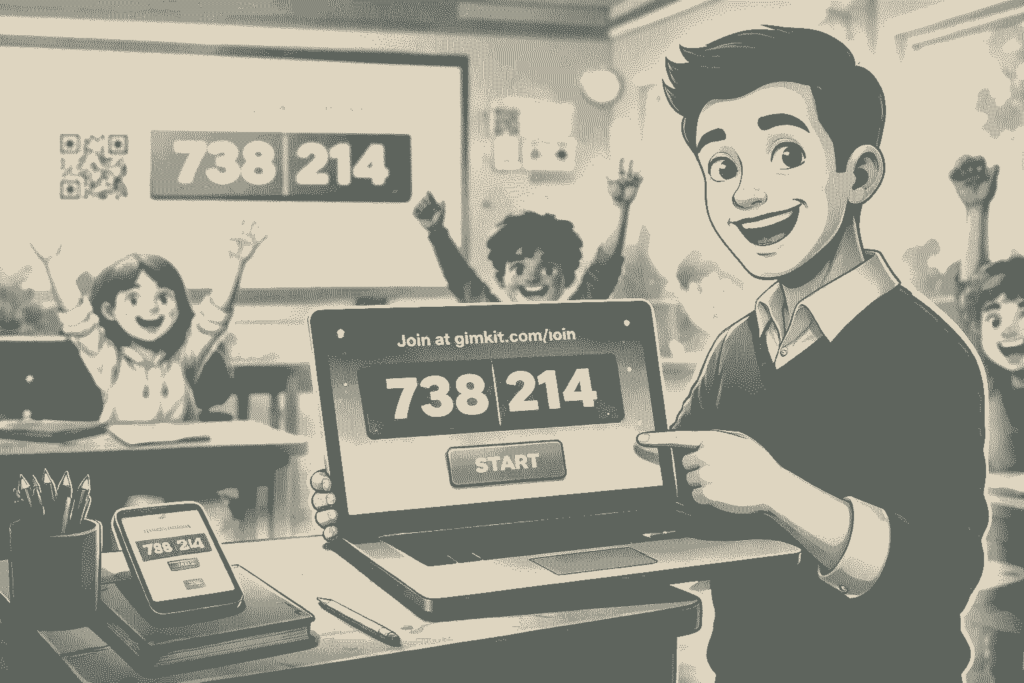
Gimkit Host is the teacher control screen used to start a live Gimkit game, choose a mode, set options, share the code or join link, and manage play in real time.
If you want to host Gimkit well, do three things: pick the right Kit, choose the right game mode, and control entry before the lobby gets messy. That is the difference between a smooth review session and a noisy one.
Gimkit’s official hosting flow is simple. You select a kit, click Play Live, choose a mode, set your game options, share the code or link, and start the game. You can host any public kit, but game reports are only available for kits you own.
That point matters. Many articles explain how to launch a game, but they ignore the reporting issue. If your goal is review plus accountability, host your own kit instead of grabbing a random public one.
What Gimkit Host does
Gimkit Host is not a separate product. It is the live control layer inside Gimkit that lets a teacher run a session, manage access, and make in-game decisions. The host screen is built for action, not theory.
From the teacher side, the key tasks are consistent across modes: control who joins, decide whether late arrivals can enter, display the code clearly, and start only when the room is ready. Gimkit’s help center also shows that some modes include extra host controls, especially in 2D games where the host can join as a spectator or player.
How to host a Gimkit game
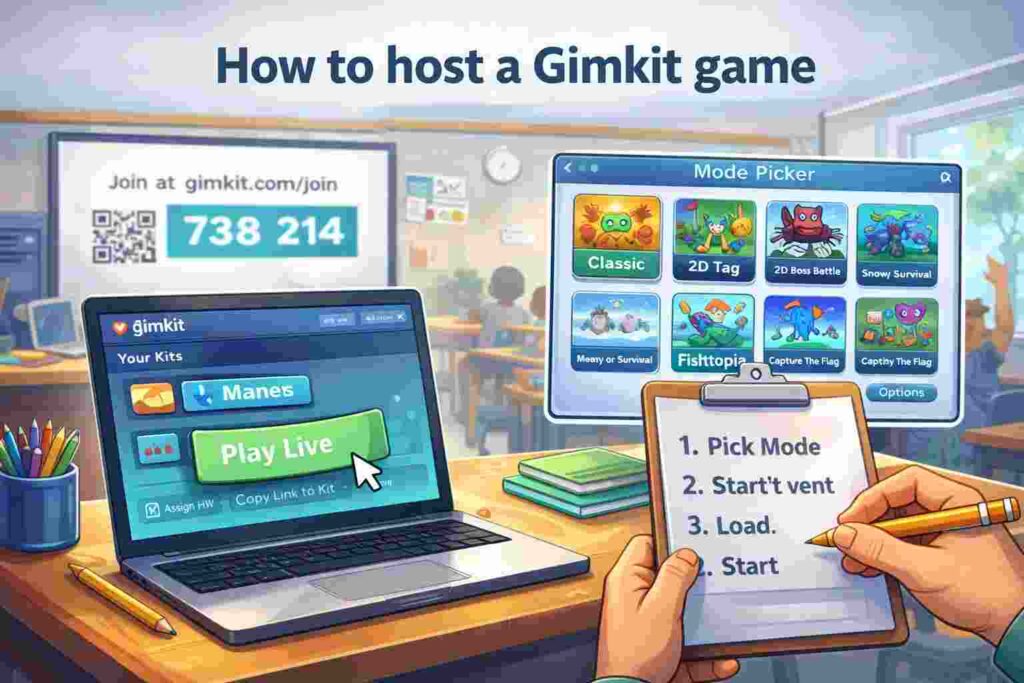
Start in your dashboard and choose the Kit you want to run. Click Play Live and the Mode Picker opens. From there, select the game mode that fits your class goal.
Next, configure your game options. Gimkit’s standard options include your game goal, whether to connect a class, whether students can join in late, and whether to use the Nickname Generator. Mode-specific settings appear after that.
Then share access. Students can join with a game code, a join link, or a QR code. If you already use student accounts in a class, Instant-join can skip code entry and name typing completely.
Once the lobby is stable, start the game. Do not rush this step. Most classroom friction starts before the first question appears.
Which settings matter most
The most important setting for control is Join in Late. Turn it on when students may arrive after the start. Turn it off when you need a locked roster and fewer interruptions. Gimkit includes this as a standard live-game option because it directly affects classroom flow.
The second high-value control is Nickname Generator. When enabled, students receive random safe names and cannot type their own. This is a practical fix for off-task behavior, not a cosmetic feature.
The third is Instant-join. In classes with student accounts, it is the fastest path into a live session because students only need to go to Gimkit Play to enter. That saves time, especially in short review blocks.
Best setup by teaching goal
| Goal | Best host choice | Why it works |
|---|---|---|
| Fast start | Instant-join or QR code | Cuts entry time and reduces repeated code questions |
| Better control | Nickname Generator + review lobby first | Limits name issues and keeps the room orderly |
| Better data | Host your own kit | Lets you access game reports after play |
This is the angle most competitors miss. The right host setup depends on the result you want, not just the button you click.
If you teach large groups, keep this limit in mind. Gimkit says the hard cap for a live game is 500 students, though actual performance still depends on network quality and device reliability.
Common problems and fixes
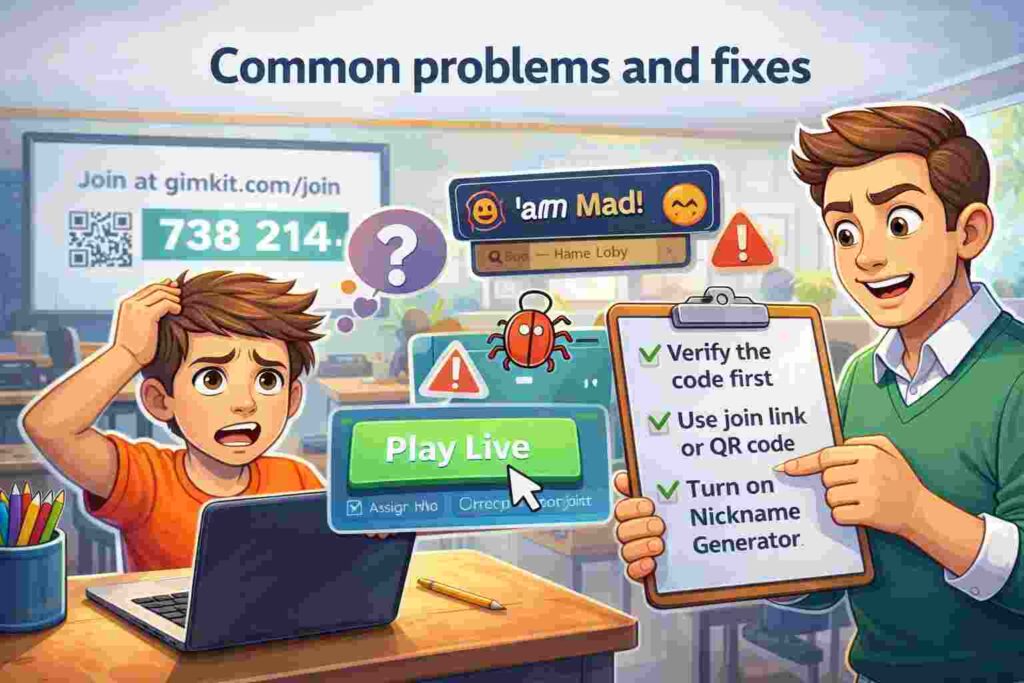
If students cannot join, verify the code first, then switch to the join link or QR code. If you use classes, test Instant-join before the lesson begins.
If the lobby gets chaotic, turn on Nickname Generator next time and wait to start until you can scan the roster. If you are using a 2D game, decide early whether you should host as a spectator or player. Spectator mode gives you better control.
If a session needs more time, Gimkit allows hosts in live 2D game modes to add one minute at a time from the timer, with a maximum game length of 59 minutes. That is useful, but it should not replace planning.
Also Read: How to Make a Gimkit: This Gimkit Host Guide Does It All!
Final takeaway
A strong Gimkit Host session is built before the game starts. Choose the right kit, use the correct entry method, and match settings to your classroom goal. That gives you faster starts, better control, and data after the game ends.
