
You have an old iPad, a few connected lights, and a tip that yesterday’s electronics can become tomorrow’s hub. Before you spend an afternoon setting it up, find out what the tip actually promises. A tablet that controls your lights from the sofa may have a different job from the device that runs your lighting schedules.
Domikyo.com is a general-interest publication that covers technology, business, health, finance, and other topics. Its homepage mentions connected devices and home networking. Here’s what I found in its Tech section, how one published tip holds up against Apple’s documentation, and what to check when an article recommends a device or a change to your Wi-Fi.
What Does Domikyo.com Actually Publish?
The homepage lists eight topics in its main menu, including Tech, Business, Education, and Lifestyle. When I checked the first page of the Domikyo.com Tech section on November 14, 2026, its leading entries covered power access for a construction project, Python networking tools, and search-ranking data.
The site’s search box gave me a more specific view. Searching for “home automation” brought up the main site overview. The “smart home” search surfaced an article on recycling electronics alongside results about error codes and public Wi-Fi. I’d use that search box to find a specific page, then read the page itself to see how much it says about your device or setup.
Can You Trust Domikyo.com for Buying Advice?
Judge the claim you plan to act on. A general explainer can help you understand a term. If you’re choosing a smart home system, look for exact models, the app the writer used, and a clear explanation of how any claims about compatibility or performance were checked.
Check the byline and any commercial disclosures
The Domikyo.com About page credits its editorial team collectively. The electronics article I checked carries the byline “Kevin.” The site’s editorial policy calls for disclosure of relevant commercial relationships, and its advertising page offers sponsored articles. When a page recommends a product, check the byline, the text around purchase links, and any disclosure near the beginning or end. Give more weight to specific findings you can confirm.
Check the model before applying a tip
Find the model number on the device label, on the box, or in the companion app. Use that number to open the manufacturer’s support page. If the maker lists multiple hardware revisions, match yours before following setup instructions. This saves time when two versions look identical and use different menus or pairing steps.
A Domikyo.com Tip Checked Against Apple’s Documentation
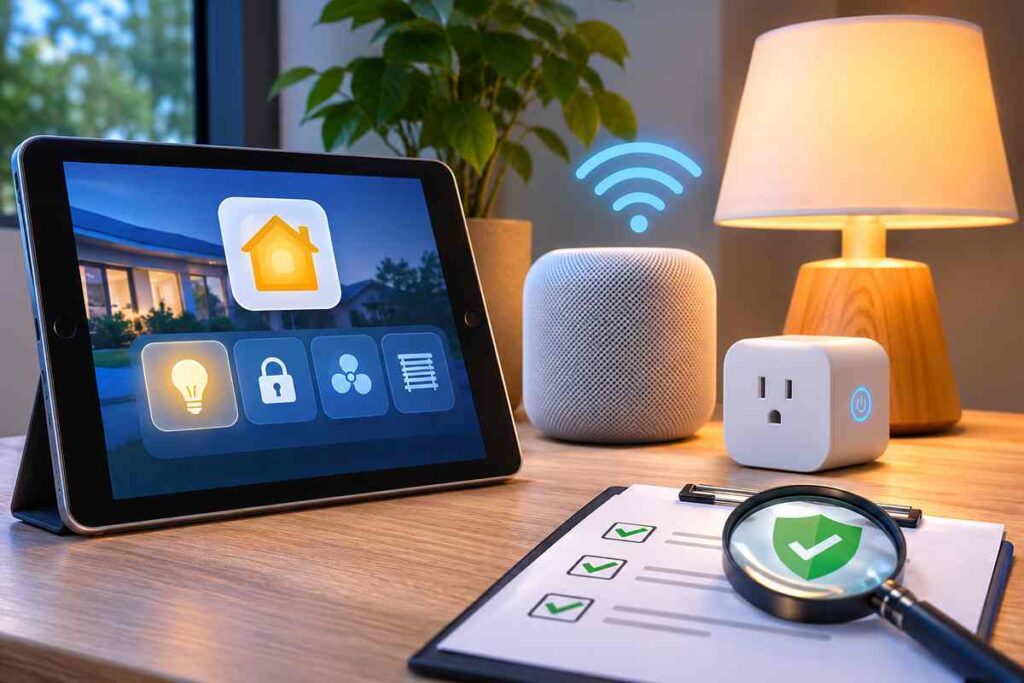
Domikyo.com published an article on electronic waste in March 2025 that suggests repurposing old electronics as smart home hubs. If you have an old iPad and use Apple Home, the practical question is whether the tablet can handle the features you need, such as turning on your lights at sunset.
Apple ended support for the previous version of Apple Home in February 2026. The current version uses supported hardware such as a HomePod or compatible Apple TV for the hub role. An iPad that meets the software requirements can still control accessories through the Home app. If you want a wall-mounted control screen, try opening Home on the iPad and switching one light on. If you want an automatic schedule, check which device your Home app lists under Home Settings → Home Hubs & Bridges.
What to Verify Before You Buy or Change a Setting
These are examples of claims you may encounter while researching smart home devices. Read the documentation for the feature you’ll use every day.
| Claim | What to verify | Best place to check |
|---|---|---|
| A plug works with your Wi-Fi | The required band and the steps for your model | The manufacturer’s setup guide |
| A device works with your preferred app | Support for that device type and any required hub | Your platform’s compatibility guide |
| Smart home security systems keep video history | Which events are saved, how long they stay available, and what a plan adds | The provider’s model and plan comparison |
| An outdoor smart plug suits your setup | The exact model, outlet location, and conditions the maker permits | The device label and product manual |
The Matter smart home standard helps compatible products work across different platforms. Check the requirement for your setup before a smart home installation. For example, Apple specifies that Thread-based Matter accessories need a Thread-enabled home hub or a supported Thread border router.
For a home security camera, look up the feature you actually want before subscribing. According to Google, the Nest Doorbell (battery) offers up to three hours of event video history without requiring a paid subscription. That model records by event even with optional wiring. If you need to review something that happened overnight, check whether your model and plan will still have the clip in the morning.
Try a Two-Location Wi-Fi Check Before Replacing Hardware
If a plug keeps dropping offline, compare two outlets before changing your router settings. TP-Link’s Kasa smart plug setup guide specifies 2.4 GHz Wi-Fi for the setup it describes. Start with your own model’s instructions.
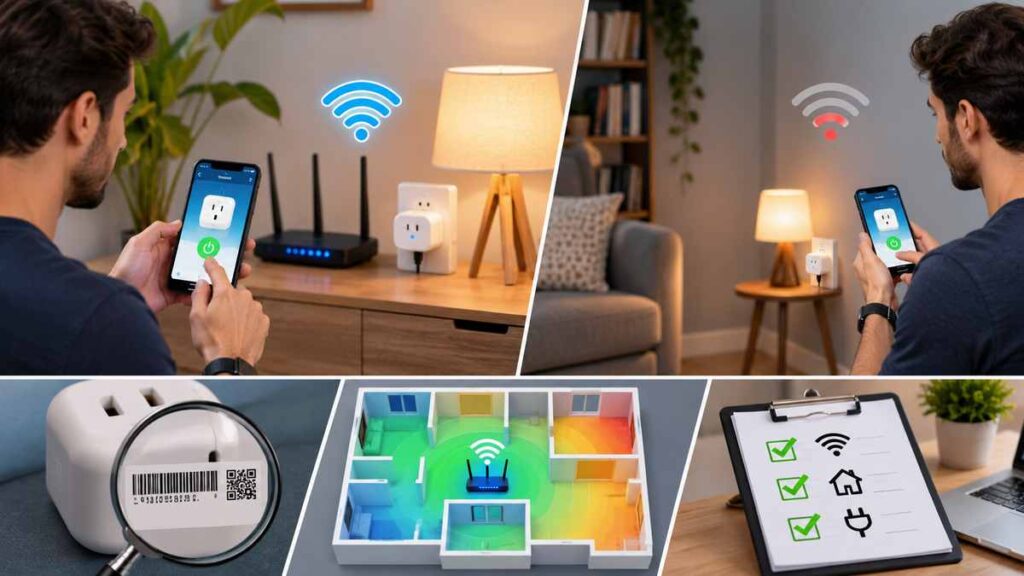
- Plug a small lamp into the device near your router. Pair it as directed, then switch the lamp on and off twice from the app.
- Move the lamp and plug to the intended outlet. After the plug reconnects, repeat the test with the same phone and app.
- If the plug responds near the router and fails in the other room, investigate Wi-Fi coverage at that outlet. If both tests fail, recheck the required Wi-Fi band, app permissions, and pairing mode.
If several connected devices struggle at the same time, check your router’s capacity and overall network usage. TechHBS explains how cameras, smart plugs, and other connected equipment affect your home’s broadband requirements for smart devices.
The same principle helps during a security camera installation. Verify the connection and watch a test clip from the intended location before you mount anything permanently. For an indoor security camera, also check who can view the feed and turn on two-factor authentication if the camera account supports it.
Frequently Asked Questions
Who runs Domikyo.com?
Individual ownership was unverified during this review. To see who is accountable for a specific claim, open the author profile and check whether it describes experience with the product or technology being discussed.
Can I use Domikyo.com to choose a device?
Use it to identify questions worth asking. Before ordering, open the product manual and confirm the exact model, the controlling app, and any features that require a separate purchase.
What if an article and the manufacturer disagree?
Start with the current instructions for your exact hardware and software version. If the manufacturer’s documentation leaves a feature unclear, ask its support team to confirm before buying equipment or resetting a device.
Conclusion
Domikyo.com can help you get familiar with a topic. Before following a tip, pick the one claim that will affect what you buy or change. Open your device’s support page, match the model number, and check that claim first.
