
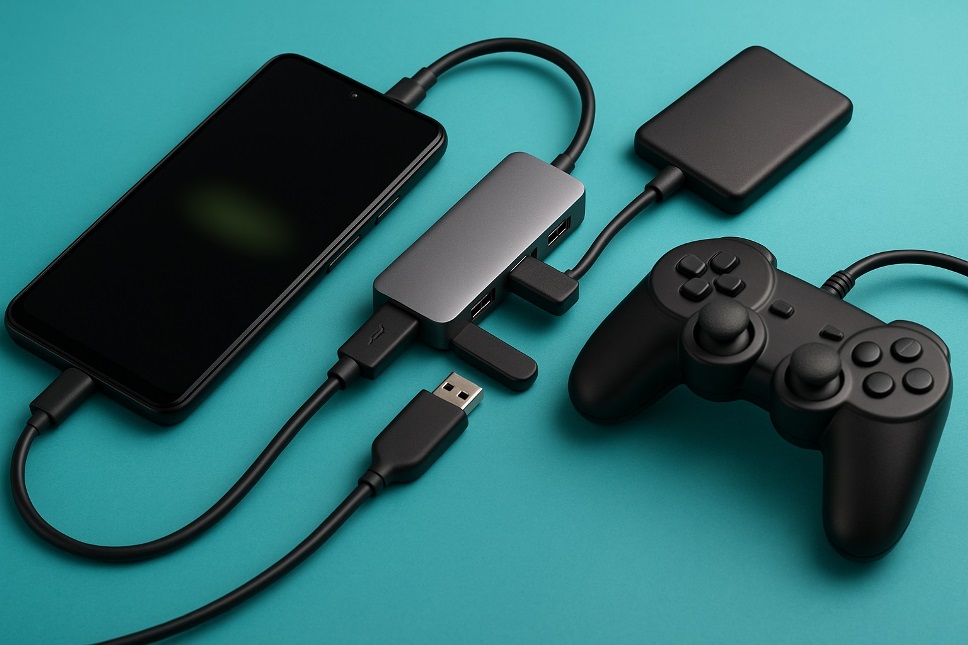
Modern Android phones can do far more than calls, messaging, and social apps. With the right setup, your phone can connect to flash drives, keyboards, mice, game controllers, card readers, microphones, and even some external storage devices. If you often run out of connection options, learning how to unlock extra USB ports on your Android phone can make your device much more flexible for work, gaming, and everyday use.
Why Add Extra USB Ports to an Android Phone?
Most Android phones come with a single USB-C port, and older models may still use micro-USB. That works fine for charging, but it becomes limiting when you want to connect more than one accessory at a time. For example, you may want to plug in a USB flash drive while using a keyboard, or connect a mouse and a game controller together.
Adding extra USB ports helps you turn your Android phone into a more productive tool. It is useful for file transfers, mobile gaming, content creation, remote work, and watching media from external storage. Many users also search for ways to connect USB devices to Android because it saves time and reduces the need for a laptop in simple tasks.
What You Need to Unlock Extra USB Ports
The easiest way to add more USB ports to an Android phone is by using a USB OTG adapter or a USB hub for Android phone. OTG stands for “On-The-Go,” a feature that lets your phone act like a host for other USB devices.
Here are the most common tools you may need:
- USB OTG adapter
- USB-C hub
- Powered USB hub
- Micro-USB OTG cable for older Android devices
- USB flash drive, keyboard, mouse, or other accessories for testing
If your phone has a USB-C port, a USB-C OTG hub is usually the best choice. If you plan to connect several power-hungry devices, a powered USB hub is a smarter option because it provides extra power from an external source.
Check If Your Android Phone Supports USB OTG
Before buying anything, make sure your phone supports USB OTG. Most modern Android devices do, but not all of them support every accessory in the same way.
You can check OTG support in a few simple ways:
Look at Your Phone Specifications
Search your phone model online and look for “USB OTG support” in the device specifications.
Check System Settings
Some Android phones include OTG settings under connected devices, additional settings, or storage settings.
Test With an OTG Adapter
The fastest method is to connect a USB flash drive with an OTG adapter. If your phone reads the drive, OTG is working.
This step matters because without OTG support, your Android phone will not recognize external USB accessories properly.
Best Ways to Add Extra USB Ports
There is more than one way to expand USB connectivity on Android. The right option depends on how many devices you want to connect and what you plan to do.
Use a Simple USB OTG Adapter
A basic OTG adapter gives you one standard USB-A port from your phone’s USB-C or micro-USB port. This is the cheapest and easiest solution if you only need to connect one accessory at a time.
Use a USB-C Hub
A USB-C hub for Android is ideal if you want multiple ports at once. Many hubs include:
- Multiple USB-A ports
- SD and microSD card slots
- HDMI output
- USB-C power input
- Ethernet in some models
This is the most practical option for people who want a mini workstation experience from their phone.
Use a Powered USB Hub
If you plan to connect external hard drives, microphones, LED devices, or several accessories together, a powered USB hub is better than a standard one. It delivers stable power and reduces connection issues.
How to Set It Up Correctly
Setting up extra USB ports on your Android phone is usually very simple.
Step 1: Connect the OTG Adapter or USB Hub
Plug the OTG adapter or USB hub into your phone’s charging port.
Step 2: Attach Your USB Devices
Connect your accessories, such as a USB flash drive, keyboard, mouse, or gamepad.
Step 3: Approve Any Permission Requests
Some Android phones may ask for permission to access files or connected devices. Accept the prompt to continue.
Step 4: Test Functionality
Open your file manager for external storage or test the accessory directly. For example, move the mouse pointer, type with the keyboard, or open files from the flash drive.
In most cases, Android will detect supported devices automatically.
What Devices Can You Connect?
Once you unlock extra USB ports on your Android phone, you can connect many popular accessories, including:
- USB flash drives
- External SSDs
- Keyboards
- Mouse devices
- Game controllers
- Card readers
- USB microphones
- MIDI keyboards
- Printers in some cases
This is why terms like Android USB hub, connect USB devices to Android, and USB OTG for Android phone are so popular. People want laptop-like convenience from a device that fits in their pocket.
Also Read: How to Turn a USB Drive into a Secure Login Key for Your PC
Common Problems and How to Fix Them
Sometimes a connected device does not work right away. That does not always mean the hub is faulty.
Device Not Detected
Make sure your phone supports USB OTG. Also try reconnecting the hub or testing with a different accessory.
Not Enough Power
This is common with external hard drives and multiple accessories. Switch to a powered USB hub.
File Transfer Issues
Use a compatible file system like FAT32 or exFAT. Some Android phones struggle with unsupported drive formats.
Hub Works but Charging Does Not
Not every USB-C hub supports pass-through charging on every phone. Check compatibility before buying.
Final Thoughts
If you want more flexibility from your device, learning how to unlock extra USB ports on your Android phone is a smart upgrade. A simple USB OTG adapter can connect one accessory, while a USB-C hub or powered USB hub can turn your phone into a compact productivity setup. Whether you want faster file transfer, better gaming control, or easier access to external storage, adding extra USB ports makes your Android phone far more useful.
The key is to choose the right hub, confirm OTG support, and match your accessories to your phone’s power limits. Once everything is connected, your Android device can handle much more than most people expect.
