
![Unlock Windows 11 Ultimate Performance Power Plan [2026]](https://techhbs.com/wp-content/uploads/2026/07/Unlock-Windows-11-Ultimate-Performance-Power-Plan-2026-1024x683.jpg)
While power plans have always been available in Windows, there is something even better hidden within Windows 11: an Ultimate Performance power plan. Unlike the default High Performance preset, this ultimate power plan will make sure your CPU and storage stays ready all the time. In case you need maximum responsiveness at work, then you definitely should know how to activate it.
What This Plan Actually Does
There are several power options in Windows 11, but what the advanced users want to activate is the built-in performance profile that reduces small delays due to too-aggressive power management. While searching for this power plan, users want to get faster performance out of their desktop, workstation or powerful laptop without changing the hardware. This is a valid goal; however, this particular power plan works only when the system’s performance is limited by conservative power management settings.
Who Should Use It
This power option is especially useful for creative professionals, gamers, developers and other users who use resource-intensive applications for a long period of time. This power option can improve productivity while compiling, rendering, multitasking, virtual machines and large files processing. However, it may be useless for regular browsing, streaming and office work, since Balanced mode is pretty responsive in those cases. Moreover, on battery-operated laptops, this mode will decrease the runtime and cause additional heating. Thus, this power option should be used for targeted purposes, not for general.
How to Activate It Safely
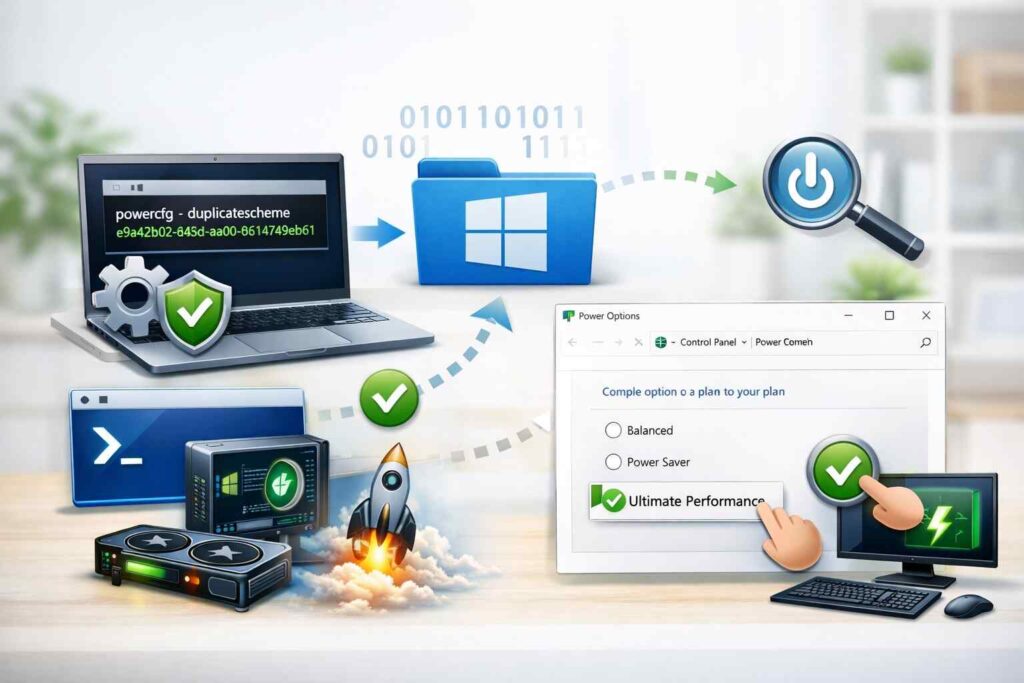
For most Windows 11 users, this particular power plan is hidden by default. To activate it, you’ll need to duplicate Microsoft’s built-in power plan using Command Prompt or PowerShell command. The easiest way is to launch powercfg -duplicatescheme e9a42b02-d5df-448d-aa00-03f14749eb61 and after that, go to Control Panel, open Power Options and select the created plan. All current tutorials recommend this method, and it is still applicable in Windows 11.
What happens when you turn it on?
First and foremost, it means that Windows won’t be as aggressive in parking CPU cores, clocking them down, or dropping the computer into an extreme idle state between performance bursts. It is clear that the system will always be prepared for operation. This can help to eliminate micro-latencies in some scenarios and ensure more stable performance under load, but it will do nothing to turn a weak processor or old storage drive into something faster.
What are the benefits and the downsides?

This mode can produce its best results on plugged-in PCs and workstations equipped with good cooling solutions and running demanding applications. In such conditions, the approach will help to maintain stable performance throughout a long work session. However, there’s an obvious cost of such a decision – increased electricity consumption, more heat, and possibly more audible fans. This is why experienced users don’t blindly follow the idea that bigger numbers are always better and test the changes first of all. Otherwise, if there’s no tangible difference, using the Balanced approach would be a better decision.
Main pitfalls to avoid
Probably, the most common misconception is that turning on this plan automatically increases the number of frames per second in any game or application. As a matter of fact, a vast majority of titles are limited in performance by such factors as the GPU itself, storage capacity, RAM amount, or internet connection speed. Another common error is turning on this plan on a thin laptop when it’s not plugged in. In this case, your battery will run out faster without providing any noticeable advantages. Also, it’s wrong to turn this plan on if your system works perfectly. A good optimization always focuses on eliminating bottlenecks.
Also Read: How To Speed Up Windows 11 For Gaming
When It Is Worth Using
Use this mode if your computer is plugged in, is cooled well, and performs complex operations that require a fast response from the CPU. This is applicable for video processing, compilation of codes, scientific calculations, working with audio tracks, large Excel spreadsheets, and performing complicated work with numerous opened windows. At the same time, you should never turn it on when you are doing simple things like typing, surfing the web, sending emails, and watching movies, as increased electricity consumption doesn’t bring any significant gains. The fact that the configuration is powerful doesn’t mean that it should work under stress permanently. The
FAQs
Does this mode make Windows 11 faster?
Yes, it will help the computer react quickly even under heavy loads, although it will not correct poor hardware or cooling issues.
Is it safe?
Yes, it is a native Windows mode, but you should be prepared for increased heating and energy consumption.
Is it suitable for gaming?
In some cases, if the CPU is what restricts performance, although most games show little to no improvements.
Can I enable this mode on a laptop?
Yes, but it is better to have it active only when plugged into an electric outlet, because laptop battery life will decrease.
Should I always use this mode?
No, unless you really need it for heavy tasks.
