

The fastest way to turn review time into full-class participation is to run a Gimkit live session with a clear plan. When you know how to launch the right mode, share the join code quickly, and control the room in real time, Gimkit stops being just another quiz tool and becomes a serious student engagement engine.
- What Is Gimkit and Why Every Teacher Needs to Host a Gimkit Game Right Now
- How to Create a Gimkit Account and Build Your First Kit in Under 5 Minutes
- Step-by-Step: How to Host a Gimkit Live Game and Share Your Gimkit Join Code
- Classic, Team Mode, Trust No One & More: Choosing the Best Gimkit Game Mode for Your Class
- Power-Ups, Streak Bonuses & Host Controls: How to Customize Your Gimkit Game Settings Like a Pro
- How to Manage a Live Gimkit Session: Dashboards and Controls
- 7 Pro Tips to Maximize Student Engagement When You Host Gimkit Games
- Gimkit Creative Mode and Gimkit Pro: Are the Upgrades Worth It for Total Classroom Engagement?
- Using Gimkit Game Reports and Student Analytics to Drive Smarter Lesson Planning
- Conclusion
- FAQs
What Is Gimkit and Why Every Teacher Needs to Host a Gimkit Game Right Now
Gimkit is a game-based learning platform built around Kits, which are question sets you can use in live games and other activities. For teachers, the real advantage is not only the questions. It is the mix of competition, strategy, replay value, and host controls that keeps students active instead of passive.
When you host gimkit game sessions well, you get more than energy in the room. You also get post-game reports, flexible mode choices, and settings that let you match the activity to your lesson objective instead of forcing your lesson to fit the tool.
How to Create a Gimkit Account and Build Your First Kit in Under 5 Minutes
To start, create a free educator account at Gimkit. Gimkit says educator accounts are free, required for hosting and creating kits, and new accounts begin with a 14-day free trial of Gimkit Pro.
Once inside your dashboard, click New Kit. From there, you add a kit name, language, and subject, then begin building questions. If you already have content ready, Gimkit also supports importing a spreadsheet as a CSV, which is the quickest route for teachers converting existing review banks.
For a first build, keep it simple:
- 10 to 15 focused questions
- one clear learning target
- distractors based on real student mistakes
That structure makes your first gimkit host game easier to run because the pacing stays sharp and the data is easier to interpret afterward.
Step-by-Step: How to Host a Gimkit Live Game and Share Your Gimkit Join Code
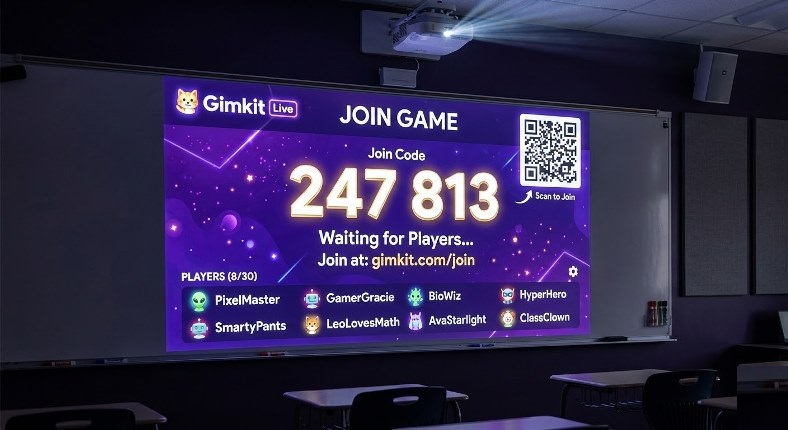
From your dashboard or from inside a kit, click Play Live. Gimkit then takes you to the Mode Picker, where you choose how the class will play. After that, you move to the game options screen, set your preferences, and launch the lobby.
In the lobby, students can join with a QR code, a direct join link, or by visiting gimkit.com/join and entering the Gimkit join code. If you use Classes and students are logged in, they can join instantly.
The easiest live-game workflow is this:
- choose the kit
- choose the mode
- review options
- display the code
- confirm names
- start the game
That is the core gimkit host process, and it works whether you are teaching five students or hundreds. Gimkit’s published hard limit is 500 players for live games and 60 players for 2D game modes.
Classic, Team Mode, Trust No One & More: Choosing the Best Gimkit Game Mode for Your Class
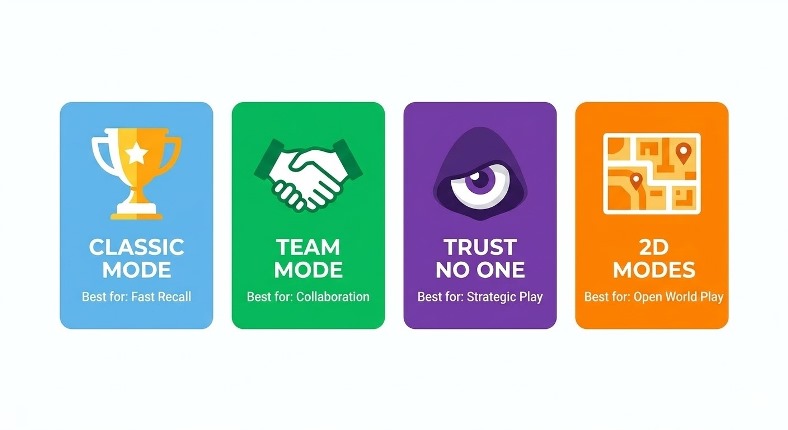
Game mode choice matters because Gimkit modes are designed for different classroom outcomes. Gimkit’s Mode Picker includes labels that help you identify whether a mode is more collaborative, strategic, calming, or discussion-friendly.
Use this quick matching approach:
- Classic when you want straightforward review and easy pacing
- Team Mode when collaboration matters more than individual leaderboard pressure
- Trust No One when you want social deduction, discussion, and high energy
- 2D modes when you want movement, strategy, and longer immersion
The smartest move is to match the mode to the learning moment. Fast recall works well in simpler formats. Concept review, teamwork, and classroom culture often improve when you vary your Gimkit game modes across the week.
Power-Ups, Streak Bonuses & Host Controls: How to Customize Your Gimkit Game Settings Like a Pro
Before launch, Gimkit lets you adjust game options such as class connection, nickname generator, game goals, and whether students can join late. These options differ by mode, which is why strong hosts always review the setup screen instead of clicking through on autopilot.
In 2D modes, you also get balance controls that let you decide how strongly correct answers feed gameplay. For example, some modes let you change how much bait, snowballs, or energy students earn per correct response.
A pro setup usually looks like this:
- nickname generator on for quicker entry
- join-in-late on for large groups
- a clear time goal
- balanced rewards so answering still drives the game
That is how you host gimkit without losing the academic purpose.
How to Manage a Live Gimkit Session: Dashboards and Controls
Once the game starts, your host screen becomes the control center. In non-2D modes, you can use the leaderboard and Quick Actions. For 2D games, you may join as an observer or gamer and handle the match via the play settings board.
You can remove students from the lobby before the game begins, remove them during the game if needed, enlarge the code for late joiners, and end the session early from the host controls. Gimkit also allows adding time during 2D live games, up to the platform’s limits.
The best hosts keep one eye on learning and one eye on flow. If the room gets too chaotic, shorten the round. If students are locked in, keep the momentum going.
7 Pro Tips to Maximize Student Engagement When You Host Gimkit Games
Student engagement improves fastest when you make small host moves that change the feel of the whole session.
- Start with a short kit, not a giant one
- Explain the win condition before students join
- Choose modes based on objective, not novelty
- Use the lobby to catch name issues early
- Vary solo and collaborative modes
- Keep rounds tight and replayable
- Review one or two missed concepts immediately after the game
These tactics work because Gimkit rewards momentum. The smoother the launch and the clearer the objective, the more students stay in the learning loop.
Gimkit Creative Mode and Gimkit Pro: Are the Upgrades Worth It for Total Classroom Engagement?
Gimkit Creative Mode is useful if you want students to build or explore custom experiences. Gimkit says Creative does not require coding knowledge, though it also offers an optional drag-and-drop code block editor for more advanced builds.
As for Gimkit Pro, the biggest value is broader access. Gimkit states that Basic supports featured modes, classes, and reports, while Pro unlocks all game modes, assignments, and richer content options like image uploads and audio in questions.
For most teachers, Pro is worth it when you want mode variety all year. Creative Mode is worth it when you want students making, not just answering.
Using Gimkit Game Reports and Student Analytics to Drive Smarter Lesson Planning
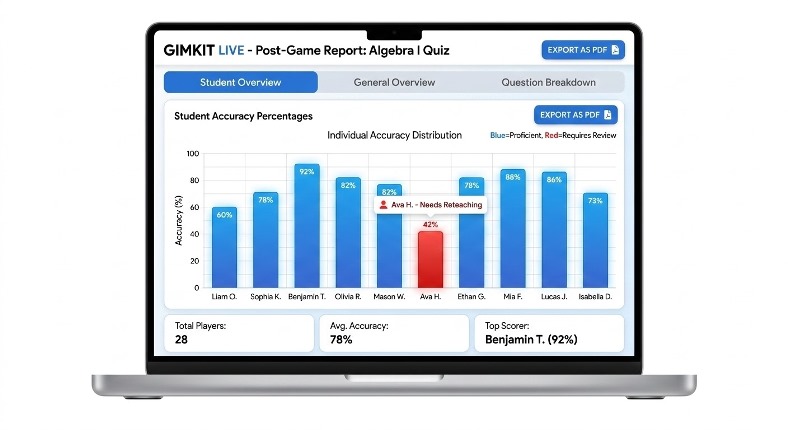
Once you lead a kit you created, Gimkit offers a summary with group and personal statistics. You can review reports right after the game or later from your dashboard. Gimkit also breaks reports into Student Overview, General Overview, and Question Breakdown.
This is where the platform becomes more than fun. Your Gimkit dashboard gives you evidence you can actually teach from:
- which students guessed well but lacked consistency
- which questions confused the whole class
- which standards need reteaching tomorrow
You can also print or save reports as PDF files, which is useful for team planning or intervention notes.
Conclusion
If your goal is better participation, faster review, and more visible learning data, Gimkit is one of the strongest classroom tools you can use. Learn the hosting flow once, choose the right mode for the moment, use the host controls with intention, and every future live session will feel smoother, smarter, and far more engaging.
FAQs
Can students play Gimkit without creating their own account?
Yes. Student accounts are optional for joining live games. Students can join with the code, QR code, or join link your screen provides.
Can I host a public kit I did not create?
Yes. Gimkit allows you to host public kits, but you only receive full game reports for kits you own.
Can I save a game report for later review or meetings?
Yes. Gimkit lets you access past reports from the dashboard and save them as PDFs for later use.
