
Fact-checked against Apple guidance: @October 2026
Your message stays blue, “Delivered” never appears, and your call goes to voicemail. Have you been blocked—or is there a technical problem? When someone stops responding, ordinary messaging issues can feel personal. Before drawing conclusions, here’s how to interpret the clues, troubleshoot your iPhone, and avoid unreliable “tests.”
Is There a Guaranteed Way to Know If You’re Blocked?
There is no proven method to know whether you have been blocked on iMessage. Apple says blocked contacts are not notified when their calls or messages are blocked, and messages from blocked contacts are not delivered. However, an undelivered message alone does not establish that someone blocked you. Connection problems and messaging settings can produce similar symptoms.
The goal is to rule out technical issues—not turn ambiguous behavior into proof.
How Blocking Works on an iPhone
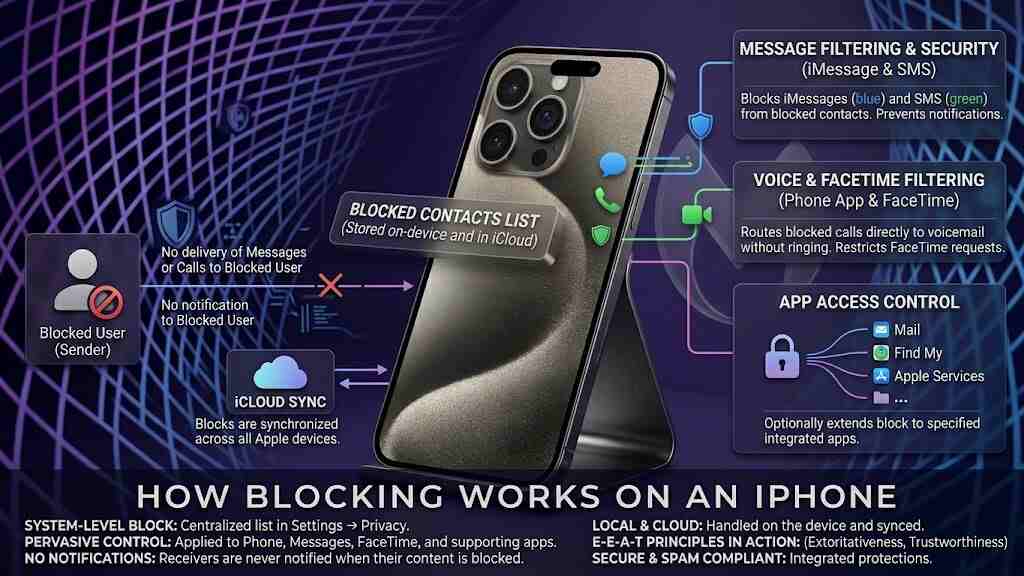
Blocking someone through Messages is not an iMessage-only restriction. Apple’s contact-blocking controls also affect communication through apps such as Phone and FaceTime. Blocks apply across Apple devices signed in to the same Apple Account.
It also helps to separate the services: iMessage handles messages, while voice and video calls started from a conversation use Phone or FaceTime. A failed call is therefore not a separate “iMessage blocking test.”
Possible Signs—and What They Actually Mean
1. Your iMessage Doesn’t Say “Delivered”
A lack of delivery receipt could be indicative of blocking, but it is not conclusive evidence. The devices of the recipient might be offline, or iMessage might be unavailable for one or both parties.
A red exclamation mark with “Not Delivered” indicates a sending failure—not a specific blocking diagnosis. Apple recommends checking your network connection before retrying.
What to remember: Missing delivery information tells you less than many online guides suggest.
2. Messages No Longer Show “Read”
Read receipts are optional. Someone can disable them for everyone or for an individual conversation. Consequently, a missing “Read” label cannot establish whether you have been blocked—or whether the message was read.
“Delivered” without “Read” is not evidence of rejection. It may simply reflect the recipient’s privacy settings.
3. Blue Message Bubbles Turn Green
The green bubble shows that the message was sent through RCS, SMS, or MMS rather than iMessage. Color identifies the messaging service; it does not reveal someone’s blocked-contacts list.
The green messages may be displayed during times when iMessage is not available. Importantly, supported RCS conversations can show delivery and read receipts even though their bubbles are green.
The myth to avoid: “Green means blocked” is not a reliable rule.
4. Calls Go to Voicemail or FaceTime Goes Unanswered
Neither outcome confirms blocking. For instance, Apple offers users the ability to block calls from unknown numbers and divert them to voicemail.
Apple goes on to explain that a block will allow calls to reach voicemail without any notification sent to the recipient. So reaching voicemail does not prove you are unblocked, either.
Likewise, an unanswered FaceTime call—or silence across several messages—does not tell you why the person is unavailable.
Also Read: How to Record Phone Call on iPhone (Free Way)
What to Check Before Assuming You’re Blocked
Start with your own device rather than repeatedly testing the other person.
- Check your connection. Make sure Wi-Fi or cellular data is working. If messages fail across several ordinary conversations, investigate your connection or messaging setup first.
- Review iMessage settings. Open Settings → Apps → Messages. Make sure that iMessage is enabled, and then go to “Send & Receive” to check your phone number or email address that you regularly use.
- Resolve sending errors. For a red “Not Delivered” warning, check connectivity before selecting Try Again. Restart your iPhone if messaging problems persist.
- Verify the recipient’s details. Review the stored phone number or email address for errors. Apple specifically recommends confirming that you entered the correct contact details when troubleshooting messages.
After checking the basics, allow time. There is no meaningful threshold—such as three unanswered messages or two failed calls—that turns these clues into certainty.
If messaging fails with multiple contacts, follow Apple’s troubleshooting guidance rather than focusing on whether one person blocked you.
If Blocking Seems Possible, Respect the Boundary
Do not use hidden caller ID, another number, a new Apple Account, or a different app to work around a suspected block. Repeated attempts can make an uncomfortable situation worse.
If there is no necessary practical reason to contact the person, stop testing. Be skeptical of apps promising to reveal who blocked you, and never share your Apple Account password to obtain that information.
You do not need to prove a block before deciding to give someone space.
Frequently Asked Questions
Does “Delivered” Mean I’m Not Blocked?
“Delivered” shows the delivery of that specific message, but it doesn’t mean the recipient read it. An old delivery receipt cannot tell whether they blocked you later on.” Treat the label as message-status information, not access to their current blocking settings.
Can I See Who Blocked Me in Settings?
No. Your blocked-contacts settings manage people you have blocked, not people who blocked you. On iOS 26, Apple places that list under Settings → Privacy & Security → Blocked Contacts.
The Bottom Line
If you’re wondering how to know if someone blocked you on iMessage, the honest answer is that message behavior alone is inconclusive. Missing receipts, green bubbles, voicemail, and unanswered calls are not definitive proof. Check your setup, avoid repeated tests, and respect the possibility that someone does not want contact.
