
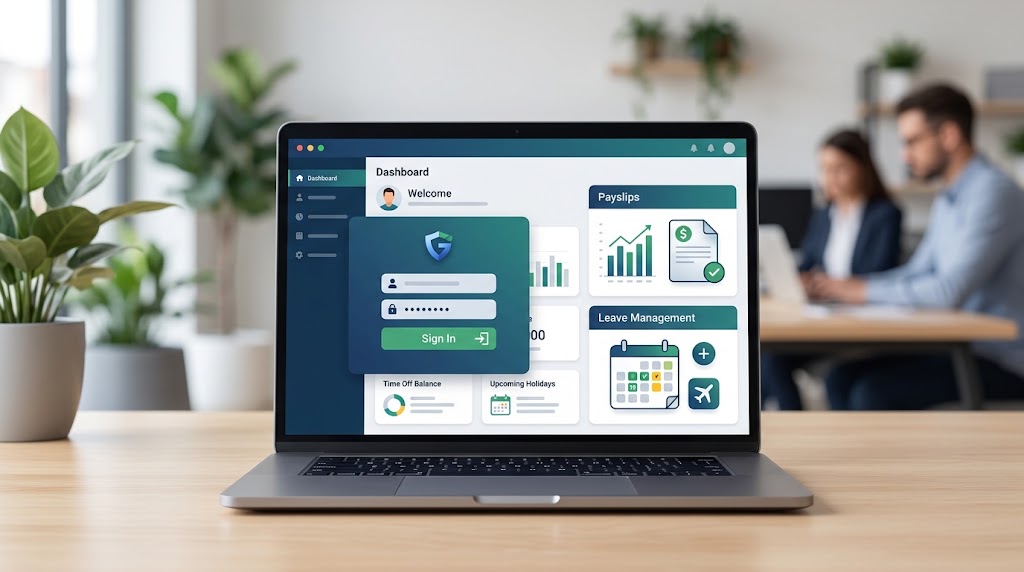
HRMS Globex is an employee-focused Human Resource Management System that brings essential workplace services—such as salary information, payslips, attendance records, leave requests and HR updates—into one secure online portal. Instead of contacting HR for every routine question, authorized employees can use the platform to find important information and complete common self-service tasks. In this guide, we will discuss the HRMS Globex login process, dashboard navigation, payslip downloads, leave applications, password recovery and common access problems.
- Use the Real HRMS Globex Login—Not a Lookalike
- Read the HRMS Globex Dashboard Before Taking Action
- Complete a Payslip Download Without Missing Details
- Submit a Leave Application That Managers Can Approve
- What Real Evidence Says About HRMS Globex
- When HRMS Globex Login Stops Working
- Frequently Asked Questions
- Conclusion: Make HRMS Globex Work for You
Use the Real HRMS Globex Login—Not a Lookalike
The public HRMS Globex login currently requests a username, password and CAPTCHA. Its dedicated Forgot Password page identifies users through an employee code, indicating that access is intended for employer-issued accounts rather than public registration.
Follow these steps:
- Open the employer-approved HRMS Globex address—normally
https://hrms.theglobex.com/. - Enter your assigned username or employee ID.
- Type your password carefully and complete the CAPTCHA.
- Select the login button once; repeated clicks can create duplicate requests.
- After signing in, confirm that your name, employee code and reporting manager are correct.
Do not use credentials from a colleague or enter your password on an unofficial “guide” website. HRMS Globex should always be accessed through the link supplied by your employer.
Read the HRMS Globex Dashboard Before Taking Action
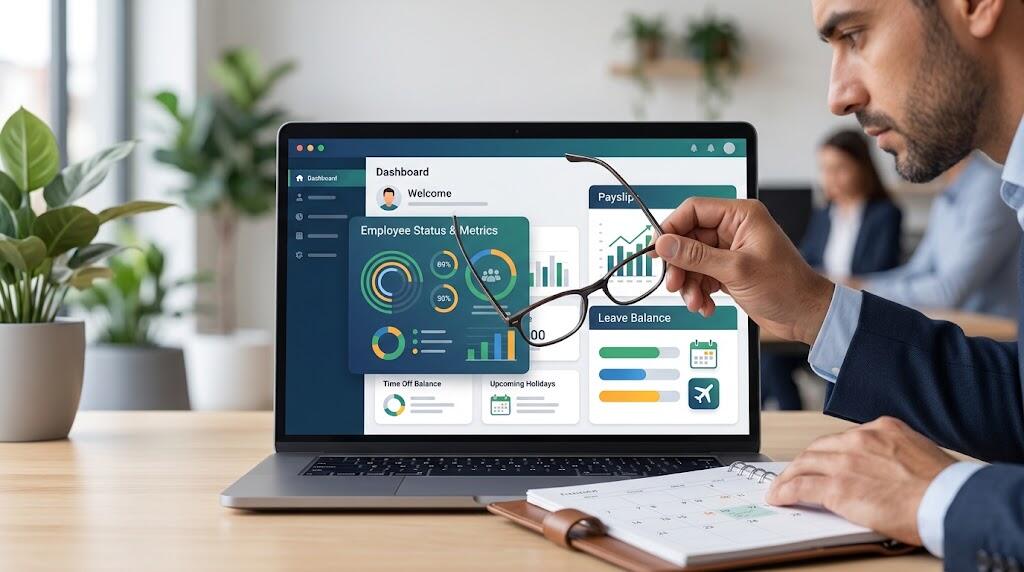
Once HRMS Globex opens, the employee dashboard should be your starting point. Depending on permissions, it may provide access to attendance, payroll, leave, employee information and performance-management tools.
An official employee guide instructs users to select Performance Review under PMS on the dashboard. It also documents automatically updated efficiency, quality and attendance information, plus draft recovery when an interrupted review is resumed after login. This confirms that the HRMS Globex dashboard is more than a landing screen, although present-day menu names may differ.
Practical example: If your employee dashboard shows two leave days but your personal record shows three, check the attendance cut-off date before submitting a complaint. A recent absence or approval may not have completed processing.
Complete a Payslip Download Without Missing Details
In HRMS Globex, look for a menu labelled Payroll, Salary, Payslip or My Documents. The exact location can depend on your role and company configuration.
For a reliable payslip download:
- Select the correct month and financial year.
- Open the salary slip before downloading it.
- Verify your employee ID, gross earnings, deductions and net pay.
- Use the PDF or download option, then store the file securely.
If HRMS Globex shows no salary slip, do not assume payroll has failed. The document may not have been published, or your account may lack access. Send HR the affected month, employee code and a screenshot—but never your password.
For example, an employee preparing a loan application should download three salary slips and compare each net-pay figure with the corresponding bank credit. That catches errors before documents reach the lender.
Submit a Leave Application That Managers Can Approve

An HRMS Globex leave application will usually begin under Leave, Apply Leave or Leave Management. Check your available balance, choose the correct leave type, enter the dates and add a concise reason. Include supporting documentation only when company policy requires it.
Before submitting in HRMS Globex, verify half-day settings, public holidays and weekly offs. After submission, check whether the request is Pending, Approved or Rejected. “Submitted” does not automatically mean approved.
Practical example: If you need Friday afternoon off, selecting a full day could deduct more leave than intended. Review the duration before confirming the leave application.
What Real Evidence Says About HRMS Globex
No independently verifiable customer testimonials detailing the current HRMS Globex login, payslip download or leave workflow were located during this review. Inventing customer praise would weaken rather than improve an EEAT-focused article.
The more useful evidence comes from official HRMS Globex manuals. A 2021 guide tells employees to contact their manager or HR if an expected appraisal letter is missing and requires the employee’s HRMS password when accepting a review. These are genuine historical workflows, not proof that every current screen remains identical.
When HRMS Globex Login Stops Working
If HRMS Globex will not open:
- Use Forgot Password and provide your employee code.
- Refresh an unreadable CAPTCHA.
- Check Caps Lock and remove accidental spaces.
- Try a private browser window or clear expired site data.
- Stop after repeated failures and contact HR or the system administrator.
Because HRMS Globex can contain salary, attendance and personal information, never share your password, CAPTCHA or downloaded salary slip publicly. Log out after using a shared device.
Frequently Asked Questions
1. What is the official HRMS Globex login URL?
The public HRMS Globex portal is https://hrms.theglobex.com/, but employees should prioritize the link provided by their HR department.
2. How do I reset my HRMS Globex password?
Open Forgot Password and enter your employee code. If recovery fails, ask HR to verify your account status.
3. How do I complete an HRMS Globex payslip download?
Open Payroll or Payslip, select the month, review the salary slip and choose the available PDF or download option.
4. Why is my HRMS Globex leave application still pending?
Your manager may not have reviewed it, or an approval level may remain incomplete. Check the leave application history before contacting HR.
5. Does HRMS Globex have a mobile app?
The public login page does not advertise an official app. Use the employee self-service portal in a secure mobile browser if your employer permits it.
Conclusion: Make HRMS Globex Work for You
HRMS Globex works best when employees verify information instead of clicking through it quickly. Use the approved login, inspect every salary slip, confirm leave dates and preserve sensitive documents carefully. When data is missing or inconsistent, report the exact month, screen and employee code to HR. That simple, evidence-based approach makes the employee dashboard faster, safer and genuinely useful.
