

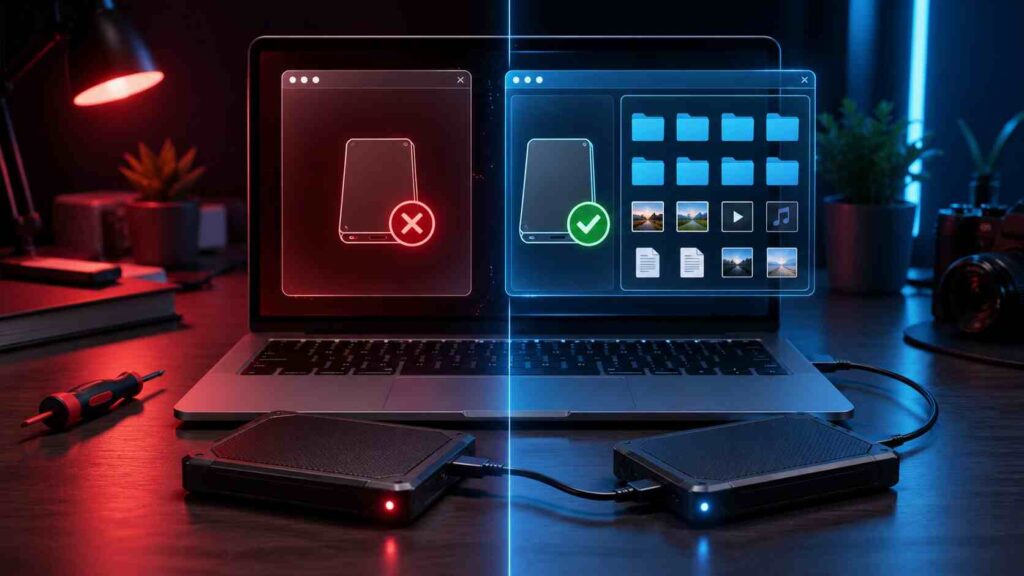
To fix an external hard drive not showing up instantly, check power, cable, USB port, File Explorer or Finder visibility, then confirm detection in Disk Management or Disk Utility before repairing, assigning letters, or formatting.
An external drive can disappear for four main reasons: weak connection, missing drive letter, unsupported file system, or disk failure. Your first job is not to format it. Your first job is to identify where the drive is visible.
- Start With the Drive Visibility Check
- Instant Fixes to Try First
- How to Fix Your External Hard Drive Not Showing Up on Windows
- How to Fix Your External Hard Drive Not Showing Up on Mac
- If the Drive Is Detected but Not Accessible
- If the Drive Is Not Detected Anywhere
- Mistakes to Avoid
- Final Safe Fix Path
- FAQs
Start With the Drive Visibility Check
Use this order. It prevents wasted steps and lowers the risk of data loss.
| Where the Drive Appears | Likely Problem | Safest Next Action |
|---|---|---|
| Nowhere | Cable, port, power, or hardware failure | Test another cable, port, or computer |
| Device Manager only | Driver or USB controller issue | Update or reinstall the device driver |
| Disk Management only | No drive letter, offline disk, or partition issue | Assign letter or bring disk online |
| Disk Utility only | Mounting or file system issue | Mount the drive or run First Aid |
| File Explorer/Finder but not accessible | Corruption or permission issue | Copy files first, then repair |
If the drive makes clicking, beeping, or repeated spin-up sounds, stop troubleshooting. That is a potential hardware failure. Continued use can reduce recovery chances.
Instant Fixes to Try First
Start with the physical checks. They solve many external drive detection issues without touching the file system.
Disconnect the drive and reconnect it directly to your computer. Avoid USB hubs, docking stations, and front-panel ports during testing.
Try a different USB cable. A cable can still power the drive while failing to transfer data properly.
Use another USB port. If possible, test both USB-A and USB-C ports with the correct adapter.
Restart the computer with the drive already connected. This can force the operating system to reload the storage device during startup.
Test the drive on another computer. If it fails everywhere, the issue is likely with the drive, cable, enclosure, or power supply.
How to Fix Your External Hard Drive Not Showing Up on Windows
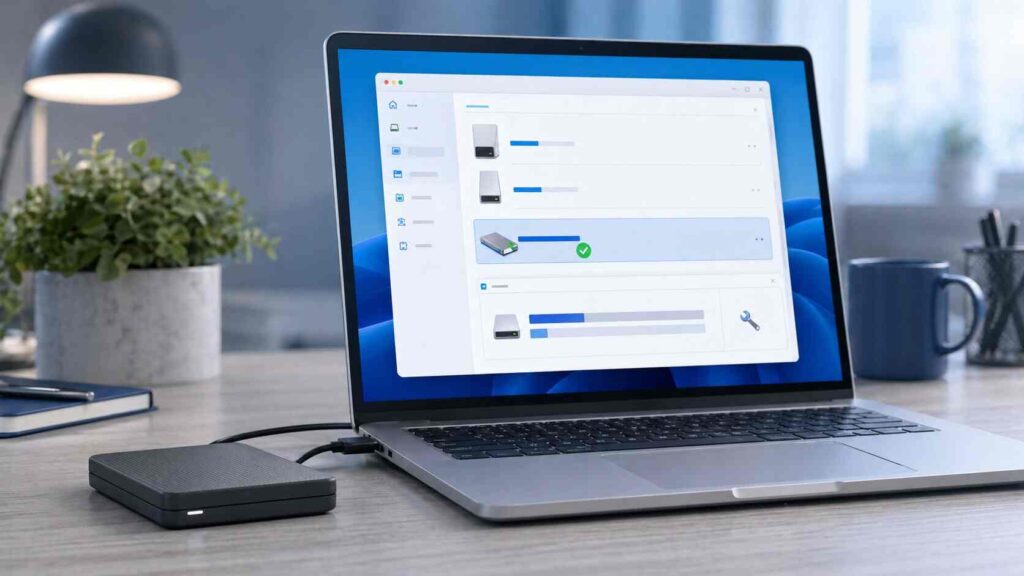
If you use Windows, check File Explorer first. Navigate to the This PC directory to inspect the Devices and drives section.
If the drive is missing, open Disk Management. Right-click the Start button and select Disk Management.
Look for the external drive by size. Do not guess. Selecting the wrong disk can damage another drive.
If the disk is marked Offline, right-click it and choose Online.
If the drive has no letter, right-click the volume and choose Change Drive Letter and Paths. Assign an unused letter such as E, F, or G.
If the space appears as Unallocated, do not create a new volume unless the drive is empty or already backed up. Unallocated space can mean a damaged partition table.
If the drive appears in Device Manager but not Disk Management, expand Disk drives and Universal Serial Bus controllers. Update the driver or uninstall the device, then reconnect the drive.
Use CHKDSK only when the drive is visible and accessible enough for Windows to scan it. Do not run repair commands on a drive that is clicking or disconnecting repeatedly.
How to Fix Your External Hard Drive Not Showing Up on Mac
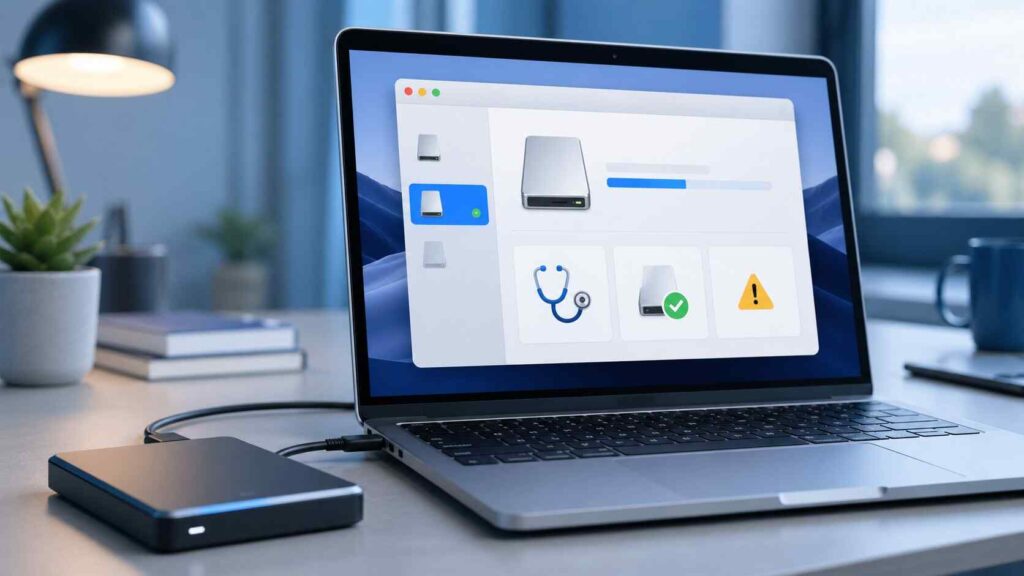
On Mac, first check Finder settings. Open Finder, go to Settings, then enable External disks under the Sidebar and General sections.
Launch the Disk Utility tool should the storage device remain undetected. Click View and select Show All Devices.
Look for the physical drive in the left panel. If the drive appears but the volume is greyed out, select it and click Mount.
If mounting fails, run First Aid. This checks and repairs basic file system errors.
Pay attention to the format. macOS can read some Windows formats, but writing may be limited depending on the file system. Common formats include APFS, Mac OS Extended, exFAT, FAT32, and NTFS.
For a drive used between Windows and Mac, exFAT is usually the most practical format. Do not reformat until your important files are backed up.
If the Drive Is Detected but Not Accessible
A detected drive that will not open usually points to file system damage, permission errors, or unsupported formatting.
Do not rush into formatting. Formatting may make the drive usable again, but it can remove access to existing files.
First, copy any accessible data to another location. Then run the safest repair tool for your system: First Aid on Mac or a careful disk check on Windows.
If Windows asks you to “format the disk before you can use it,” cancel the prompt. That message often appears when Windows cannot read the file system.
If the files matter, use recovery software or a professional recovery service before making changes to the partition.
Also Read: How to Find a Fake SSD Before it Corrupts Your Data
If the Drive Is Not Detected Anywhere
If the external hard drive does not appear on any computer, focus on hardware.
For portable drives, test another short, high-quality USB cable. For desktop external drives, confirm the power adapter works and the drive spins up normally.
Remove unnecessary adapters. A weak USB-C hub or low-power port can stop the drive from mounting.
If the drive is inside an external enclosure, the enclosure may be failing while the disk inside remains usable. A technician can test the bare drive safely.
Do not freeze the drive, hit it, or repeatedly plug it in hoping it will appear. These methods are unreliable and can make recovery harder.
Mistakes to Avoid
Do not format the drive before confirming your data is backed up.
Do not initialize a disk unless you know it is new or empty.
Do not run repeated repair scans on a failing mechanical hard drive.
Do not install random recovery tools onto the affected drive. Install software on your computer, not on the damaged disk.
Final Safe Fix Path
Use this order: check cable and port, test another computer, check Finder or File Explorer, inspect Disk Management or Disk Utility, assign a drive letter or mount the drive, then repair only when the drive is stable.
Prioritize the safest fix over the fastest possible fix. A drive that holds important files should be handled with one priority: preserve the data first, restore normal access second.
FAQs
Why is my external hard drive lighting up but not showing?
It may have power but no data connection. Test another cable, USB port, and computer.
Can I fix an external hard drive without formatting?
Yes. Many cases are fixed by assigning a drive letter, mounting the volume, changing Finder settings, or repairing disk errors.
Why does my drive show in Disk Management but not File Explorer?
It may be missing a drive letter, offline, unallocated, or using a file system Windows cannot display normally.
Why does my external drive show in Disk Utility but not Finder?
Finder may be hiding external disks, or the drive may be unmounted. Enable external disks in Finder and try mounting it in Disk Utility.
Is it safe to initialize an external hard drive?
Only if the drive is new or empty. Initializing a drive with existing files can make data recovery more difficult.
