


Your Android phone is far more than a device for calls, chats, and social media. With the right setup, it can serve as a portable control panel for all your work. Instead of scattering notes across paper, email, and random apps, you can manage projects, track deadlines, and monitor progress from a single place in your pocket. In this guide, you’ll learn a practical, step-by-step way to turn your Android phone into a focused project management system you’ll actually use every day.
- Step 1: Pick the Right App for Your Needs
- Step 2: Build Your Structure — Projects, Tasks, Deadlines
- Step 3: Customize Views and Notifications for Mobile Efficiency
- Step 4: Leverage Collaboration and Cloud Sync
- Step 5: Develop Consistent Habits — Daily and Weekly Routines
- Conclusion
- Frequently Asked Questions (FAQs)
Step 1: Pick the Right App for Your Needs
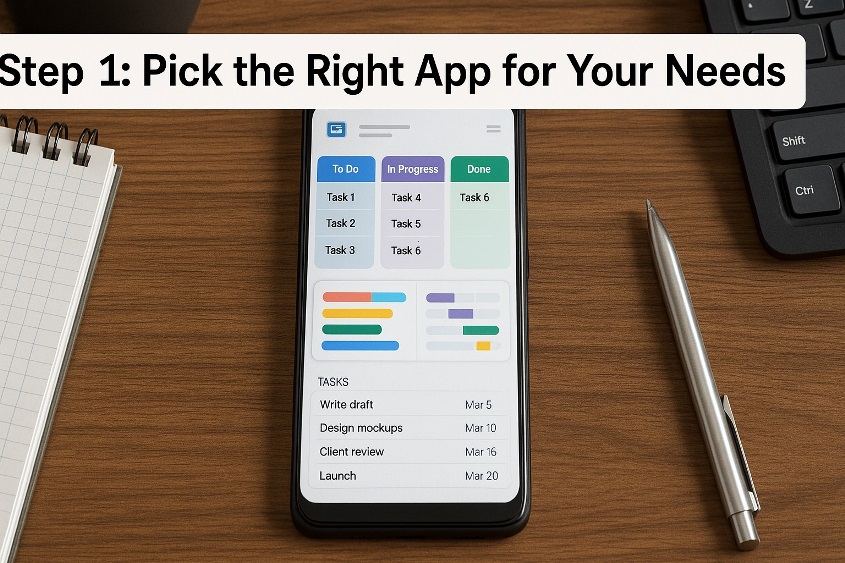
Everything begins with the app you choose. Different tools suit different working styles, so start by being honest about how you naturally organize things. Do you think in lists, timelines, or visual boards?
When comparing apps, look for these essentials:
- Separate spaces or projects
- Tasks and subtasks
- Due dates and reminders
- Search and filters
- Cloud backup and multi-device access
If you mostly manage your own workload, prioritize speed: quick task entry, clean design, and fast navigation. If you coordinate with others, give more weight to features like shared boards, comments, and file attachments. Try one or two apps for a few days and commit to the one that feels easy to open and update on the go. The “best” Android project management app is the one you won’t avoid using.
Step 2: Build Your Structure — Projects, Tasks, Deadlines
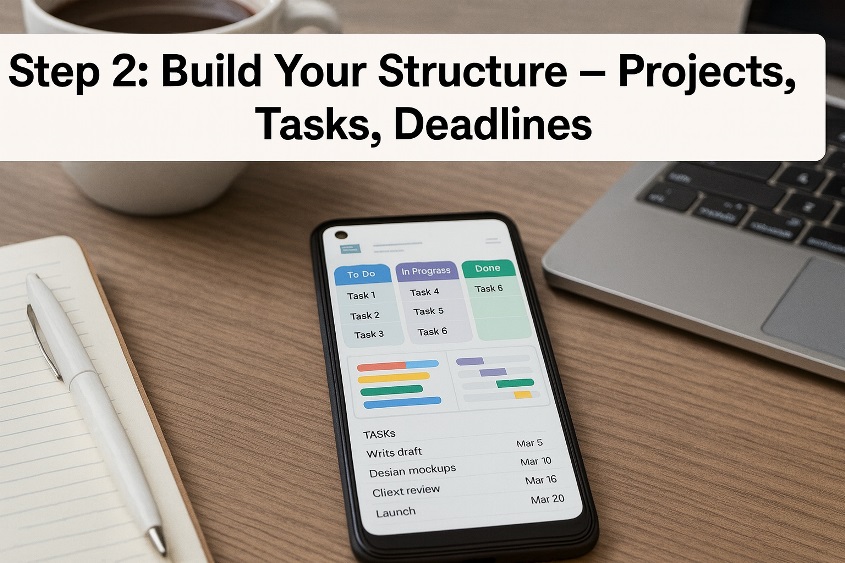
Once your app is chosen, it’s time to build the framework that will keep everything organized. Think of this as designing shelves before stacking anything on them.
- Create projects or workspaces for each area of life or work: client jobs, content creation, personal goals, or studies.
- Break projects into tasks. Each task should describe a clear action, not a vague intention. “Prepare client proposal” is still broad; “Outline proposal sections” and “Collect pricing data” are easier to execute.
- Add deadlines and priority levels. Decide when each task should be started and when it must be done. Use realistic dates rather than wishful ones.
This structure turns your phone into a map of your workload. Instead of one massive to-do list, you’ll see clear paths through each project, with time-bound steps and logical order.
Step 3: Customize Views and Notifications for Mobile Efficiency
Your phone screen is small, so how you display information matters. Most modern tools offer multiple views—boards, lists, calendars, or timelines. Take a few minutes to tailor these to your needs.
- Use board or Kanban views when you want to see work moving from “To Do” to “In Progress” to “Done.”
- Use simple lists for fast weekly reviews and daily planning.
- Use calendar or agenda views to catch clashes, busy days, and gaps where you can fit deep work.
Notifications should be strategic, not constant. Turn off noisy alerts for every minor update and keep only the ones that truly protect you from missing important actions: approaching deadlines, new assignments, or comments that require decisions. Add a shortcut or widget to your home screen so opening your project space is as natural as checking messages. This turns mobile task management into a frictionless habit instead of a chore.
Also Read: How to Send and View Photos in New Google Messages
Step 4: Leverage Collaboration and Cloud Sync
If you rarely work alone, your Android phone can still be the heart of team coordination. Choose an app that lets you invite collaborators, assign tasks, and share progress in real time. That way, a quick check on your phone helps you see who’s doing what and what’s waiting for approval.
Cloud syncing ensures your information is never trapped on a single device. You can start planning on your phone, refine details on a laptop, and then review updates from a tablet or another phone without losing continuity. When everyone shares the same synced project space, status meetings become shorter, email chains shrink, and decisions happen faster.
Step 5: Develop Consistent Habits — Daily and Weekly Routines
Even the most powerful setup fails without consistent use. Treat your Android project system like a control room: you step into it regularly and make sure everything is under control.
- Every morning: Open your app, scan today’s tasks, and choose your top three priorities. Adjust deadlines if reality has changed.
- During the day: Move tasks between stages as you work. Checking items off in real time keeps the system trustworthy.
- At the end of the week: Review what was completed, what slipped, and what no longer matters. Archive finished projects and tidy old tasks.
These routines take only a few minutes but keep your system accurate and uncluttered. Over time, you’ll trust what you see on your screen, which is the real secret behind effective productivity tools.
Conclusion
You don’t need expensive software or a complex desktop setup to manage serious work. With a thoughtful app choice, a clear project structure, customized views, and simple habits, your Android phone becomes a reliable project management system that travels with you everywhere. Instead of reacting to chaos, you’ll work from a calm, organized overview of your commitments—whether you’re at your desk, on the move, or catching up between meetings. The more deliberately you use this setup, the more control and clarity you’ll gain over every project you touch.
Frequently Asked Questions (FAQs)
1. How can I keep my project data safe if I lose my phone?
Enable cloud backup inside your project app and secure your phone with a strong screen lock. That way, your data stays protected and can be restored on a new device.
2. Should I pay for a premium plan or stick with free tools?
Free versions are usually enough for individuals. Consider upgrading only if you hit limits like restricted projects, storage caps, or the need for advanced reporting.
3. Can I use voice commands to add tasks on Android?
Yes. Many apps integrate with the system voice assistant, letting you create tasks or reminders hands-free—useful when driving or walking.
4. How do I connect my project system with email and calendar?
Look for integrations or built-in options to convert emails into tasks and sync due dates with your calendar. This reduces manual copying and missed commitments.
5. What happens when I switch to a new Android phone?
Simply install the same project management app, log in with your existing account, and let it sync. Your projects, tasks, and settings will come back automatically from the cloud.
