

Your old Android phone running slow does not mean it belongs in a drawer. With a few smart adjustments, you can speed up your old Android phone, extend its battery life, and squeeze out another solid year of performance. Before you spend hundreds on an upgrade, try these proven Android phone optimization tips that work in 2026. This guide offers a complete fix for an old Android phone running slow, and you can finish the whole process in under an hour.
- Kill the Background Apps That Are Secretly Draining Your Phone
- Delete the Digital Junk You Didn’t Know Was Piling Up
- One Update You Keep Ignoring That Actually Fixes Everything
- The Battery Hack That Stops Your Phone From Dying by Noon
- Turn Off These 3 Settings to Instantly Speed Things Up
- The Nuclear Option: Factory Reset Without Losing Everything
- When It’s Finally Time to Let Go (and What to Do With It)
- FAQs
Kill the Background Apps That Are Secretly Draining Your Phone
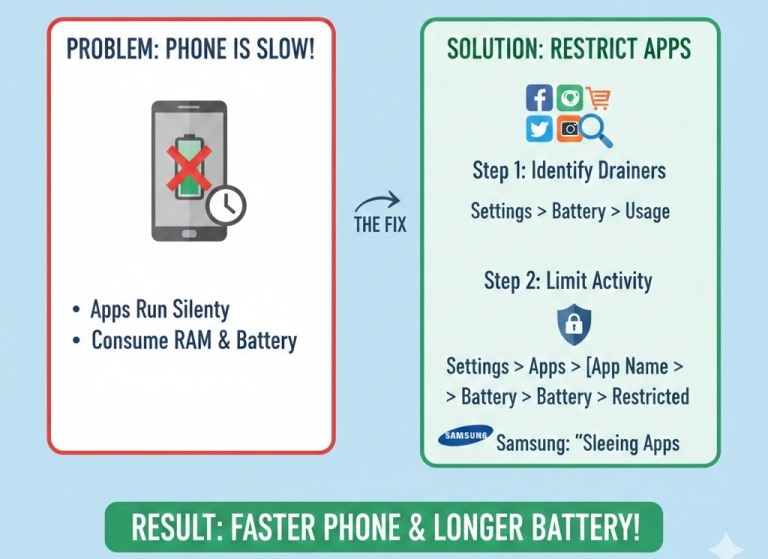
Your phone can feel “old” just because too many apps are quietly running. This is the quickest way to stop Android phone from lagging.
Check what’s eating your battery and RAM
- Go to Settings > Battery > Battery usage (wording may vary).
- Tap the top offenders and look for apps with heavy “background” time.
- For those apps, open Settings > Apps > [App name] > Battery and set it to Restricted (or turn off “Allow background activity”).
Turn off background work you don’t need
To disable background apps Android the clean way:
- Go to Settings > Apps > [App name] > Mobile data & Wi-Fi and disable Background data if you seldom require the app to refresh automatically.
- On Samsung, also check Settings > Battery and device care > Battery > Background usage limits and add rarely used apps to “Sleeping apps.”
Tip: If an app must run (messages, maps, email), don’t restrict it—just focus on games, shopping apps, and social apps that constantly refresh.
Delete the Digital Junk You Didn’t Know Was Piling Up
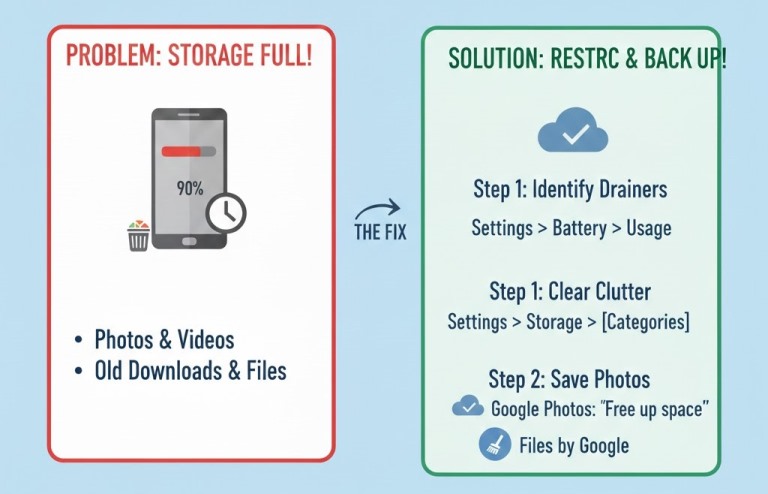
Storage pressure makes older phones stutter. Your goal here is learning how to free up space on old Android without breaking anything important.
Clear big clutter safely
- Open Settings > Storage and review categories like Apps, Images, Videos, and “Other.”
- Use Files by Google (or your phone’s built-in file manager) to delete downloads, duplicate files, and huge videos you no longer need.
Keep photos, lose the bloat
If you want to clear storage on Android without deleting photos, do this:
- Turn on cloud backup (Google Photos or your preferred service).
- Then in Google Photos, use Library > Utilities > Free up space to remove local copies that are already backed up.
Also uninstall apps you haven’t opened in months. A good rule: if you didn’t use it in 60–90 days, you probably won’t miss it.
Quick note for readers who want app ideas: a helpful approach is switching to the best lightweight apps for old Android phones (lite browsers, simpler launchers, and messaging apps that don’t constantly refresh).
Alt text suggestion for an image in this section: “Phone storage screen showing cleanup suggestions and large files.”
One Update You Keep Ignoring That Actually Fixes Everything
Most people skip the update that solves their biggest issues. Keeping software current is one of the most reliable Android phone optimization tips 2026 because it patches bugs, improves stability, and can reduce battery drain.
Do this in order:
- Settings > System > System update (or Settings > Software update on Samsung).
- Update, restart, and let the phone sit for 5–10 minutes afterward (it may optimize apps).
- Then update apps: Play Store > Manage apps & device > Updates available > Update all.
If your phone is stuck on an older Android version, app updates still matter—many performance fixes arrive through the Play Store, not the operating system.
The Battery Hack That Stops Your Phone From Dying by Noon
If your phone is slow and dying early, the battery is often part of the story. The best Android battery health tips are simple and surprisingly effective.
Use smarter charging
- Try the 20–80% rule most days (avoid living at 100%).
- Don’t leave it cooking on a charger overnight if you can help it.
- Turn on adaptive charging if your phone has it: Settings > Battery > Adaptive Battery/Charging (wording varies).
Consider a battery replacement
If you’re debating replace Android phone battery vs buy new phone, a battery swap is often the cheapest “performance upgrade.” A fresh battery can prevent sudden shutdowns and reduce throttling (some phones slow down when the battery can’t deliver stable power). If your phone supports it, use Settings > Battery to check battery health indicators, or have a repair shop run a quick diagnostic.
Alt text suggestion: “Battery usage screen with adaptive charging toggle enabled.”
Turn Off These 3 Settings to Instantly Speed Things Up
If you want a speed boost without deleting anything, change what your phone has to render.
- Live wallpapers: Use a still wallpaper (less GPU work).
- Widgets: Keep only what you genuinely use; each widget can refresh in the background.
- Animations: This one is huge—reduce motion so the phone feels snappier.
To reduce animation speed Android developer options:
- Go to Settings > About phone > Software information and tap Build number 7 times (you may need your PIN).
- Then open Settings > System > Developer options.
- Set Window animation scale, Transition animation scale, and Animator duration scale to 0.5x (or Off if you prefer).
This doesn’t “add power,” but it makes the phone feel faster immediately.
The Nuclear Option: Factory Reset Without Losing Everything
When the basics don’t help, a reset can clear out years of cruft. Done right, you can factory reset old Android phone without losing data.
Back up first (don’t skip this)
- Settings > Google > Backup and make sure it’s enabled.
- Back up photos (Google Photos or another service).
- If you use WhatsApp: WhatsApp > Settings > Chats > Chat backup.
Reset cleanly
- Go to Settings > System > Reset options > Erase all data (factory reset).
- After reboot, sign in with the same Google account and restore from backup when prompted.
Pro tip: After setup, reinstall only what you actually use. That “fresh start” is where most of the speed comes from.
When It’s Finally Time to Let Go (and What to Do With It)
So, is it worth keeping an old Android phone? Often, yes—especially if it still gets security updates, holds a charge, and runs your daily apps without freezing. But watch for signs your Android phone needs replacing: frequent overheating, random restarts, failing storage (apps won’t install), or missing critical app support.
If you do upgrade, don’t toss the old phone in a drawer. Here are repurpose old Android phone ideas that actually get used: turn it into a home security camera, a dedicated music player for the car, an e-reader, a smart remote for streaming, or a dashcam with the right mount and app. You’ll keep e-waste down and get extra value from a device you already own.
Also Read: How to Turn an Old Samsung Phone into a Smart Home Sensor
FAQs
1) How do I know if my Android slowdown is software or hardware?
If performance improves after uninstalling apps, freeing storage, or updating, it’s usually software. If it still lags, overheats, or shuts down randomly, hardware (battery or storage wear) is more likely.
2) What’s the fastest step for how to clear cache on Android to speed up?
Open Settings > Apps > [App name] > Storage & cache > Clear cache for your biggest apps (browser, social, streaming). Don’t “Clear storage” unless you’re okay signing back in and resetting the app.
3) Will my phone feel faster after a reset?
Many users notice a real jump in Android phone performance after factory reset, especially if the phone had years of app clutter and background services. The key is restoring essentials only—not reinstalling everything out of habit.
4) How long do Android phones last on average?
For most people, how long do Android phones last depends on battery health, storage condition, and update support. With basic care and occasional cleanup, 3–5 years is common, and some models go longer.
5) What if I need an old Android phone running slow fix but can’t reset it today?
Start with restricting background activity, clearing cache on your worst offender apps, and freeing 10–20% storage. Those three steps usually deliver the biggest immediate improvement while you plan a full backup and reset later.
