
When you see a Gmail account access warning, Google detected a sign-in, device, app or account change that you may not be responsible for. Check it and protect your account before you use email.
This warning will appear after using a new phone, traveling, changing a password, or connecting an app. This may be harmless. The more serious version is someone attempting to add recovery information they control or resetting your password or attempting to get into your inbox.
What a Gmail Account Access Warning Usually Means
Google sends these warnings when activity looks unusual. It may flag a new device, different country, suspicious browser, failed attempts, or a sensitive account change.
A warning does not always mean someone got in. Sometimes Google blocked the sign-in first. Treat every warning as real until you prove otherwise.
First, Confirm the Warning Is Real
Open a browser and go directly to myaccount.google.com/security. Do not trust buttons inside the warning email if the message feels rushed, poorly written, or asks for your password.
On the security page, review Recent security activity, Your devices, and Third-party access. Check the device name, time, browser, and location. A nearby city mismatch can happen, but an unknown device or country needs action.
Gmail Warning Translator
| Warning you see | What it may mean | What to do next |
|---|---|---|
| Suspicious sign-in prevented | Google blocked the attempt | Review details and change your password if it was not you |
| New sign-in on your account | A device may have accessed Gmail | Confirm it or sign it out |
| Password was changed | Someone may control the account | Start account recovery |
| Recovery info changed | Someone may try to lock you out | Restore recovery details |
| App connected | A tool may access data | Remove unknown apps |
If You Recognize the Activity
If the device, time, and location match your activity, mark it as yours. You may have signed in on a new laptop, used hotel Wi-Fi, changed phones, or installed an email app.
Still, do a quick cleanup. Remove old phones and browsers from Your devices. Update your recovery phone and email so future warnings are easier to judge.
If You Do Not Recognize the Activity
Move quickly. Choose the option that says the activity was not yours, then change your Google Account password from the official security page.
Use a password you have never used elsewhere. Reused passwords often expose Gmail accounts after breaches on other sites.
Next, sign out every device you do not recognize. Remove unknown apps from third-party access, especially apps that can read Gmail, manage Drive files, view Contacts, or access Calendar.
Then open Gmail settings and check Forwarding and POP/IMAP. Remove any forwarding address you did not add. Check Filters and blocked addresses for rules that archive, delete, or forward messages.
How to Tell If Gmail Was Actually Hacked
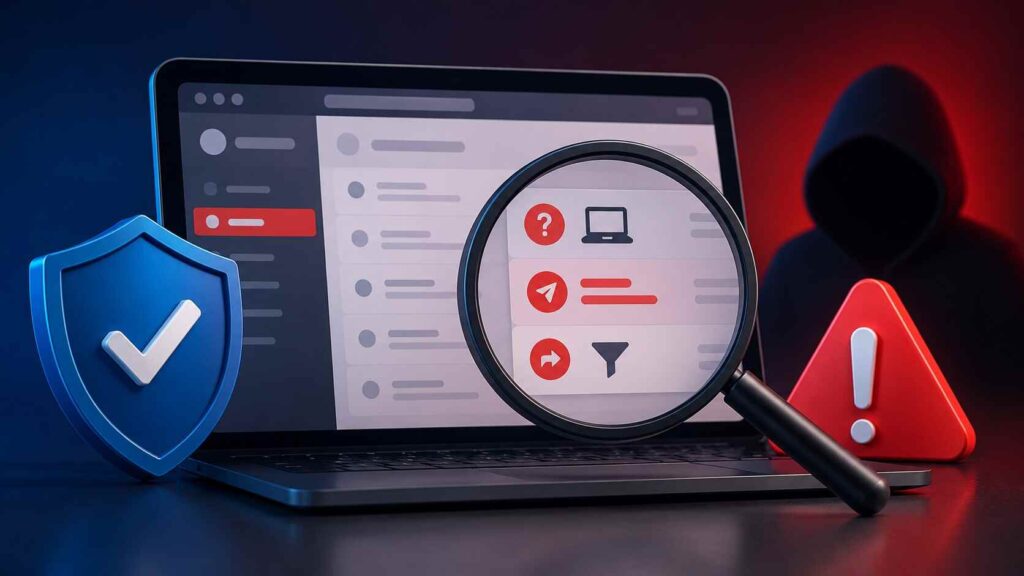
Check Sent Mail for messages you never wrote. Review Trash, Spam, and All Mail for missing alerts, deleted reset emails, or strange replies.
Look for password reset messages from banks, social platforms, shopping sites, or payment services. If Gmail is compromised, other accounts can be targeted because email is often the recovery hub.
Review your Google Account profile, saved passwords, Drive files, and YouTube activity. A Gmail warning may point to a wider Google Account problem, not just inbox access.
How to Secure Gmail After the Warning
Turn on 2-Step Verification. This adds a second approval step, so a stolen password alone is not enough.
Set up a passkey if your device supports it. Passkeys are harder to phish because you are not typing a reusable password into a fake page.
Keep your browser updated. Remove unused extensions. Never save your Gmail password on shared or public computers.
What Not to Do
Do not reply to the warning email. Do not download attachments from it. Do not enter your password after clicking a link in the message.
Do not ignore recovery changes. If someone changes your recovery email or phone, they may be trying to lock you out later.
Final Word
A Gmail account access warning is a security checkpoint. Do not dismiss it and do not panic. Verify the alert, review devices, remove unknown access, check forwarding rules, and strengthen sign-in protection the same day. Fast action limits damage and keeps your inbox and connected accounts under your control.
Also Read: What Is AVG Secure Browser? Safety, Features, Risks & Uses
FAQs
Does a Gmail account access warning mean I was hacked?
Not always. It may mean Google blocked a suspicious attempt. Check recent activity inside your Google Account before deciding.
Should I change my password every time?
Change it when the activity is unfamiliar, the password is reused, or recovery details changed. Use a unique password.
Can a Gmail security alert be fake?
Yes. Fake alerts often copy Google branding. Navigate straight to your Google Account portal rather than utilizing the links provided in emails.
Why is the location wrong?
Google estimates location from network data. A nearby mismatch can happen, but an unknown device or country needs action.
What protects Gmail best?
Use 2-Step Verification, add a passkey, update recovery details, remove unknown devices, and delete risky app access.
