

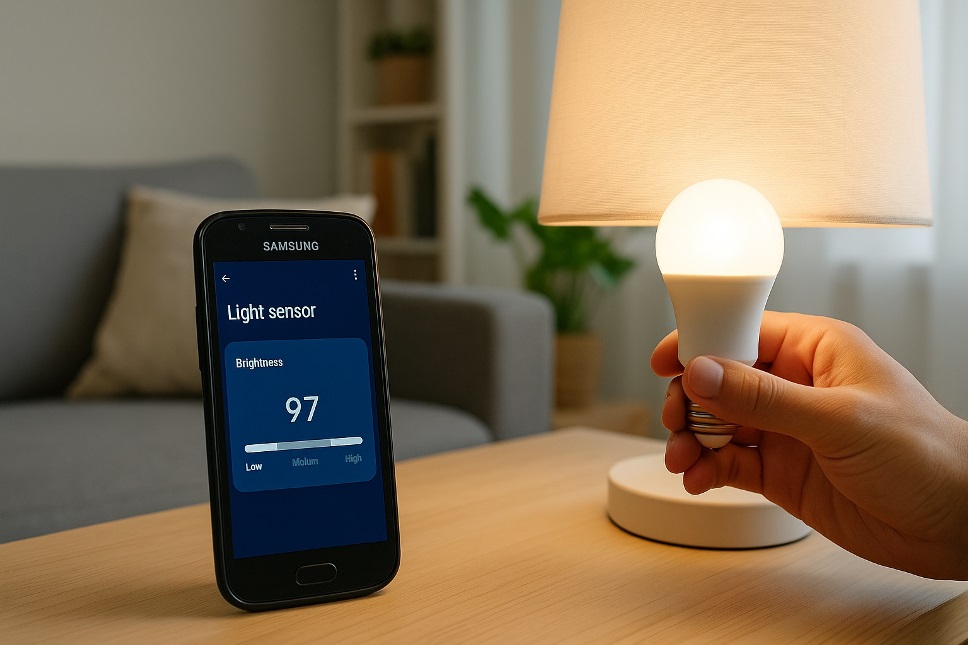
Got an old Samsung phone gathering dust in a drawer? Don’t recycle it just yet. That forgotten Galaxy device already has a gyroscope, thermometer, light sensor, camera, and microphone built in — everything you need to create a surprisingly capable smart home sensor. In this step-by-step guide, you’ll learn how to repurpose your old Samsung phone into a motion detector, temperature monitor, security camera, or sound sensor without spending a dime on new hardware.
- Why Repurpose an Old Samsung Phone as a Smart Home Sensor?
- What You’ll Need Before Getting Started
- Step 1: Update the Phone and Disable Unnecessary Features
- Step 2: Choose the Right Sensor App
- Step 3: Position and Mount the Phone
- Step 4: Connect to Your Smart Home Ecosystem
- Tips for Long-Term Reliability
- Final Thoughts
Why Repurpose an Old Samsung Phone as a Smart Home Sensor?
Dedicated smart home sensors from brands like Aqara or SmartThings can cost anywhere from $20 to $80 each. Your old Samsung phone packs more sensor hardware than most of them combined. By repurposing it, you save money, reduce e-waste, and get a versatile device that can handle multiple sensing tasks at once.
Samsung phones running Android 5.0 or later work best for this project. Models like the Galaxy S7, S8, S9, A-series, and even older J-series devices are all excellent candidates. As long as the phone powers on, connects to Wi-Fi, and has a working sensor suite, you’re good to go.
What You’ll Need Before Getting Started
Gather these items before diving in:
- An old Samsung phone (Android 5.0+, functional Wi-Fi)
- A stable Wi-Fi connection
- A USB cable and power adapter for continuous charging
- A phone mount or stand for positioning
- A primary smartphone or tablet to receive alerts
Make sure the old phone is factory reset before starting. This clears out personal data, frees up storage, and gives you a clean slate. Head to Settings > General Management > Reset > Factory Data Reset to wipe the device.
Step 1: Update the Phone and Disable Unnecessary Features
After the factory reset, connect to Wi-Fi and install any available system updates. Updated software ensures better app compatibility and improved security.
Next, disable features that drain battery and processing power. Turn off Bluetooth, GPS, NFC, and mobile data. Lower the screen brightness to the minimum or enable auto-brightness. Go to Settings > Device Care > Battery and switch on power-saving mode. Since the phone will run 24/7 while plugged in, reducing background activity extends the overall lifespan of the device.
Step 2: Choose the Right Sensor App
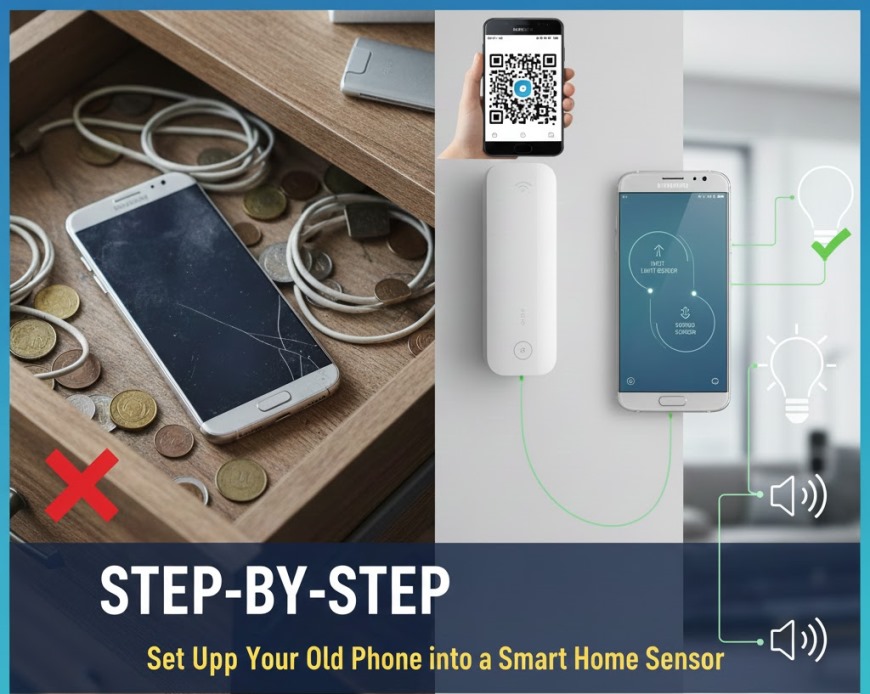
The app you install determines what kind of sensor your phone becomes. Here are the best options depending on your use case.
For motion detection and security cameras, install Alfred Camera. It turns your old phone into a live-streaming security camera with motion-triggered alerts, two-way audio, and cloud recording. Setup takes under five minutes — just install the app on both devices and sign in with the same Google account.
For temperature and humidity monitoring, try Sensify or Sensor Widgets. These apps tap directly into the Samsung phone’s built-in thermometer and barometer to display real-time environmental data. Note that not all Samsung models include a dedicated temperature sensor, but most flagship models from the S4 through S10 do.
For sound and noise detection, use Sound Alert or configure Alfred Camera’s sound detection feature. These tools listen for specific audio events like glass breaking, smoke alarms, or baby crying, and send instant push notifications to your primary device.
For multi-purpose home automation, install Home Assistant Companion. This powerful open-source app integrates with the Home Assistant platform and exposes all of your phone’s sensors — accelerometer, light, proximity, pressure, and more — as entities you can use in automations.
Step 3: Position and Mount the Phone
Where you place the sensor matters. For security monitoring, mount the phone at chest height near entry points like doors or windows using an adhesive phone mount. For temperature sensing, place it in a central room away from direct sunlight and heating vents to get accurate readings. For sound detection, position it in hallways or stairwells where sound travels freely.
Keep the phone plugged into a power source at all times. Use a quality charger rated for your device to avoid overheating during extended use.
Step 4: Connect to Your Smart Home Ecosystem
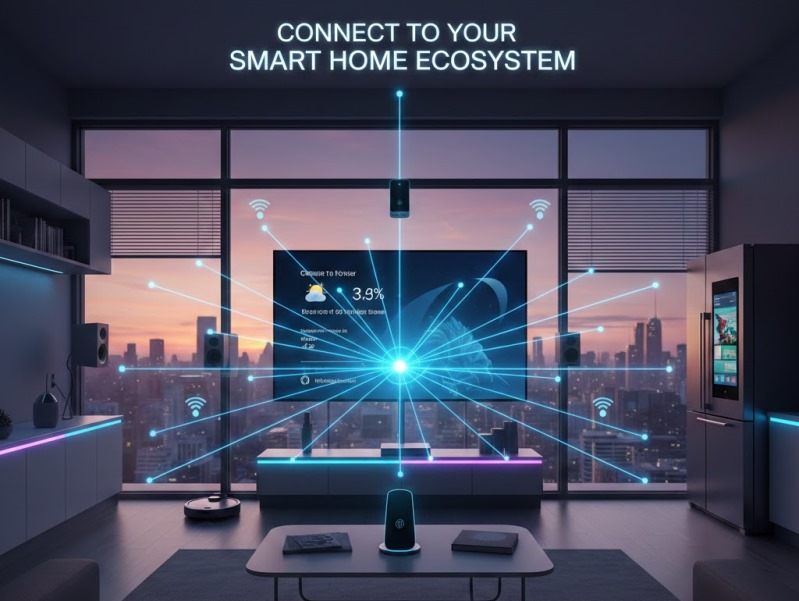
Most sensor apps support integration with platforms like Google Home, Amazon Alexa, Samsung SmartThings, and IFTTT. Through these platforms, you can create automations such as turning on lights when motion is detected, sending an alert when the room temperature drops below a set threshold, or triggering a siren when unusual sounds are picked up.
If you’re using Home Assistant, your old Samsung phone becomes a fully programmable node in your smart home network, capable of triggering complex routines across dozens of connected devices.
Also Read: How to Customize Samsung AOD: A Simple Guide
Tips for Long-Term Reliability
Running a phone as a dedicated sensor 24/7 requires a few precautions. Restart the device once a week to clear memory leaks. Keep the battery between 20% and 80% if your charger supports scheduled charging. Check for app updates monthly to patch bugs and security vulnerabilities. If the phone overheats, move it to a cooler location or remove its case to improve airflow.
Final Thoughts
Turning an old Samsung phone into a smart home sensor is one of the most practical ways to upcycle aging tech. With the right app and a few minutes of setup, that dusty Galaxy device becomes a motion detector, security camera, environmental monitor, or sound sensor — no new hardware required. Before you trade in or toss your old phone, give it a second life as the smartest sensor in your home.
