

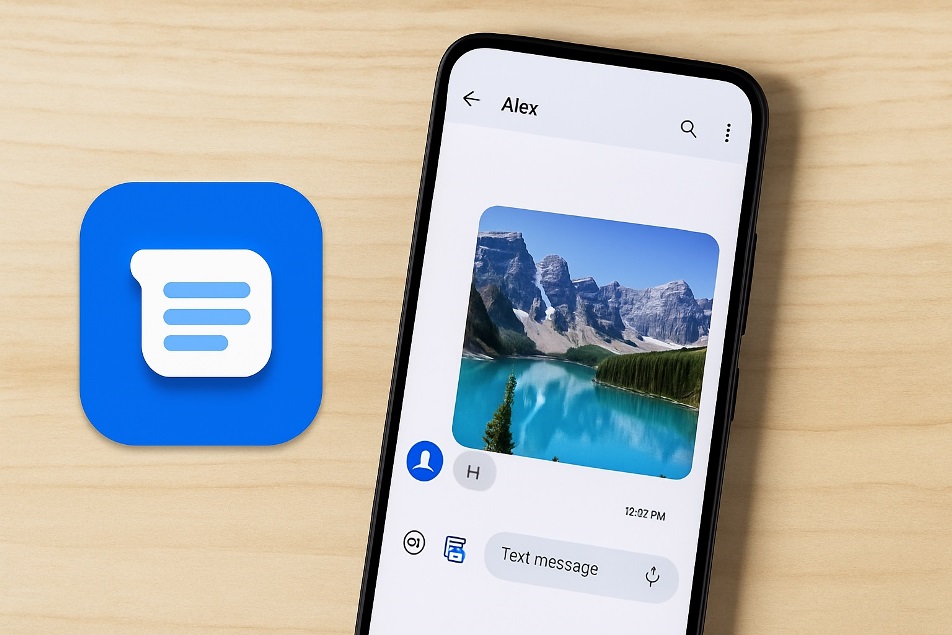
Photos are a huge part of everyday texting. If you’ve just updated to the new Google Messages interface, you might be wondering exactly how to send photos in Google Messages and how the new media viewer works to keep everything neat and easy to find. In this step-by-step guide, we’ll walk through sending, viewing, and troubleshooting photos in a simple, practical way that anyone can follow.
What You Need Before Sending Photos
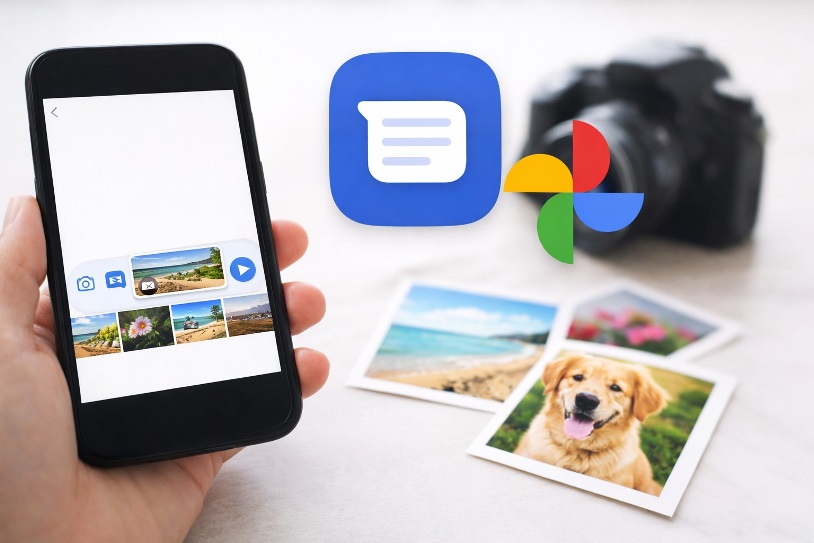
Before you start, check a few basics so photos send smoothly:
- Google Messages installed and set as default. On most modern Android phones, it’s already there, or you can install it from Google Play and set it as your default messaging app.
- Permissions granted. The app needs access to your photos, media, and camera to attach images. When prompted, tap Allow.
- Data or Wi-Fi turned on. Photos are sent either using RCS (chat over data) or MMS (multimedia over your carrier). If data is off, MMS may fail to send.
If RCS is available on your carrier and phone and turned on in Settings → RCS chats, you’ll get modern features like typing indicators, reactions, and higher-quality media in supported conversations.
How to Send Photos in New Google Messages
Step 1: Open the conversation
- Open the Google Messages app.
- Tap an existing chat, or tap Start chat to begin a new one and pick a contact.
Step 2: Attach a photo from your gallery
- In the message box, tap the Gallery icon (or media icon) on the toolbar.
- Your recent photos will appear; browse albums if needed.
- Tap the image you want to send.
You can also share pictures and videos from your phone directly from the Photos or Gallery app by using the Share button and choosing Messages as the target app.
Step 3: Take a new photo with the camera
If you’d rather capture something live:
- From the attachment row, choose the Camera option.
- Take your photo.
- Confirm with the shutter/check button so it’s attached to the chat.
This is a reliable way to send high resolution photos on Android when you’re on strong Wi-Fi or mobile data and RCS is enabled, because chat over data generally handles larger, clearer images better than old-style MMS.
Step 4: Choose media quality (HD vs HD+)
On newer versions of Google Messages, you’ll see an HD / HD+ toggle when you attach an image:
- HD – optimized for chat, still clear but smaller and faster to send.
- HD+ – sends at original or near-original resolution, using more data.
Pick the option that balances quality and data for you.
Step 5: Send the photo
- Add an optional caption in the message box.
- Tap the Send button.
If RCS is available for that contact, your phone can send pictures with RCS chat, which usually means better quality and more reliable delivery than MMS.
Also Read: Google Messages vs Samsung Messages: Best Android Messaging App?
How to View and Save Photos in New Google Messages
Once photos are flying back and forth, you also need to know how to view photos in Google Messages in the new layout.
Open a single photo
- Open the conversation that contains the image.
- Tap the thumbnail preview in the chat bubble.
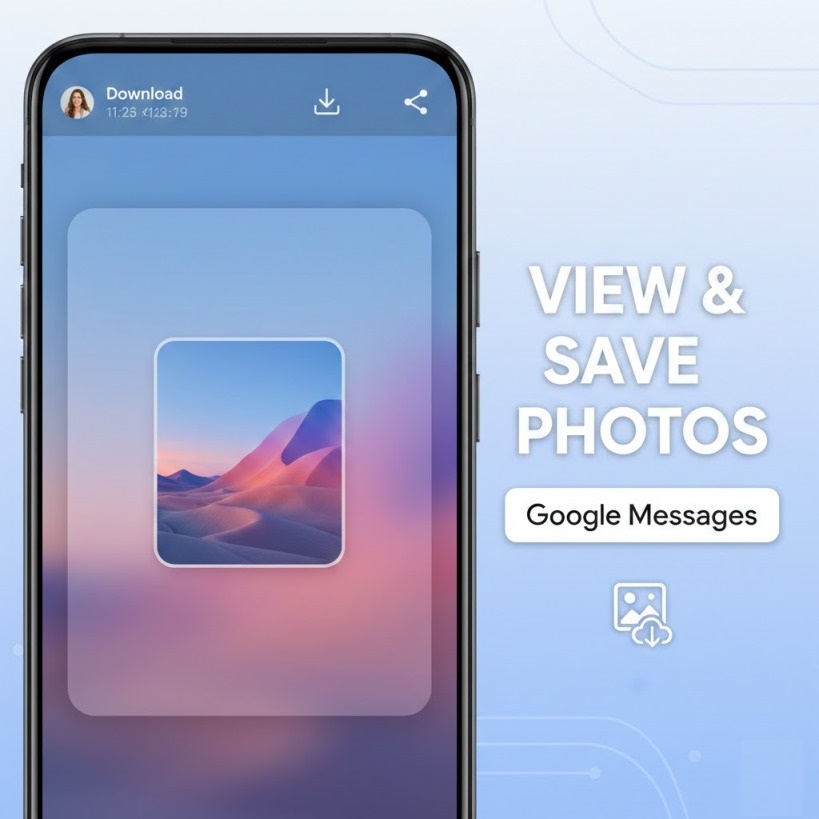
Google is rolling out a Google Messages photo viewer redesign that changes what happens next. Instead of a simple black background, you get a modern fullscreen viewer:
- The photo appears centered with rounded corners.
- A blurred version of the image fills the background.
- You’ll see who sent it, when it was sent, and icons to download or delete.
- A three-dot menu lets you forward, share, star, or view details.
You can swipe left or right to move through other media from the same chat without scrolling the whole conversation thread.
Save a photo to your device
Inside the viewer:
- Tap the download or save icon in the top bar.
- The image is stored in your phone’s gallery or Photos app, often in a “Messages” or “Downloads” folder.
This workflow makes it easier to manage media in Google Messages conversations without hunting through every bubble in a long chat.
Use Photos Across Devices
If you chat from your computer as well, you can use Google Messages for web to read threads and see attached photos directly from a browser after pairing it with your phone.
For cross-platform chats, when you send picture messages from Android to iPhone, your phone may fall back to MMS if RCS isn’t supported on the other side, which can compress images and make sending slower than pure RCS.
Quick Fixes When Photos Won’t Send or Load
If an image keeps spinning or fails with an error, here’s how to fix Google Messages not sending pictures without diving into advanced settings:
- Check connection – Confirm mobile data or Wi-Fi is on and stable.
- Update the app – Install any pending Google Messages updates from the Play Store.
- Check MMS and RCS settings – Ensure your carrier supports MMS and that RCS chat features, if available, are verified and active.
- Keep file sizes reasonable – Very large photos and videos may hit MMS size limits on some carriers; compressing or cropping can help.
- Restart phone and toggle data – A quick restart plus toggling mobile data off and on often clears temporary glitches.
If incoming images appear blurry or refuse to load, recent Google backend updates are specifically aimed at improving media reliability in Messages, so keeping your app up to date and providing feedback can help.
Final Thoughts
The new Google Messages experience makes it far easier to share pictures and videos from your phone, keep them organized, and enjoy them in a modern, immersive viewer. Once you know where the Gallery, camera, HD options, and fullscreen viewer live, sending and viewing photos becomes second nature—and you can spend more time enjoying the memories instead of fighting with your messaging app.
FAQs
Do photos I receive automatically save to my gallery?
Do photos save to gallery automatically? Usually no—tap Download or enable auto-save in settings.
Can I delete a photo without deleting the chat?
Can I delete one photo only? Yes—open it, tap delete or menu, choose delete.
How do I stop photo previews in notifications?
Hide photo previews in notifications? Turn off previews or sensitive content in Messages.
Can I favorite specific photos?
Can I favorite important photos? Star the message, then find it later via search.
Can I control sensitive or explicit photos?
Control sensitive photos? Enable sensitive content warnings in Messages safety settings to blur images.
