


Gaming gear is worth buying only when it solves a real problem you can measure (clearer audio, steadier frame rate, fewer disconnects, less pain after long sessions). In the U.S., the Entertainment Software Association reports 61% of people ages 5–90 play video games at least one hour per week (about 190.6 million people), and the average player is 36. With that many players, the market is crowded—and a careful checklist matters more than hype.
- Our Editorial Standard: The Performance-First Methodology
- 1) Start with one bottleneck
- 2) Console video: verify the whole HDMI chain
- 3) Audio: clarity first, then volume discipline
- 4) Controls and ergonomics: the upgrades you feel every day
- 5) PC performance: buy stable, then tune latency
- 6) Cloud play: test your network before buying add-ons
- Conclusion
- FAQs
Our Editorial Standard: The Performance-First Methodology
At EuroGamersOnline, we bypass the marketing “noise” by stress-testing hardware against real-world bottlenecks. Our 2026 gear evaluations are grounded in three pillars: verifiable manufacturer documentation, standardized safety thresholds (such as WHO acoustic guidelines), and hands-on “7-day fatigue” testing. We don’t just list specs; we verify that every component—from HDMI 2.2 signal integrity to ergonomic neutral-posture alignment—delivers a measurable improvement to your play session.
1) Start with one bottleneck
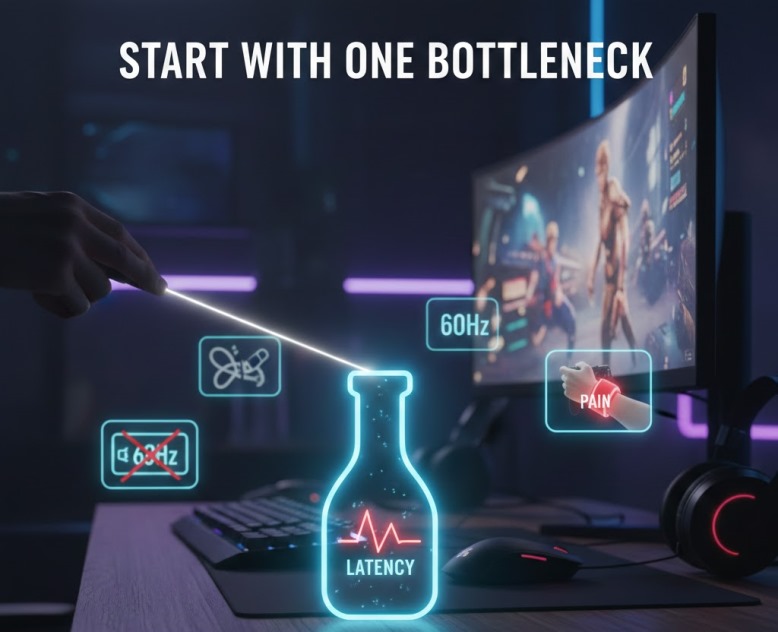
Before you buy anything, write one sentence: “My biggest problem is ___.” Common bottlenecks:
- Display chain not enabling 120Hz/VRR
- Audio clarity (you can’t understand footsteps or chat)
- Comfort (wrist/neck strain)
- Latency (inputs feel delayed)
- Network (stutters or dropouts)
Fix one bottleneck, then re-test for a week. This makes upgrades practical—and prevents a drawer full of gadgets that never improved your play.
2) Console video: verify the whole HDMI chain
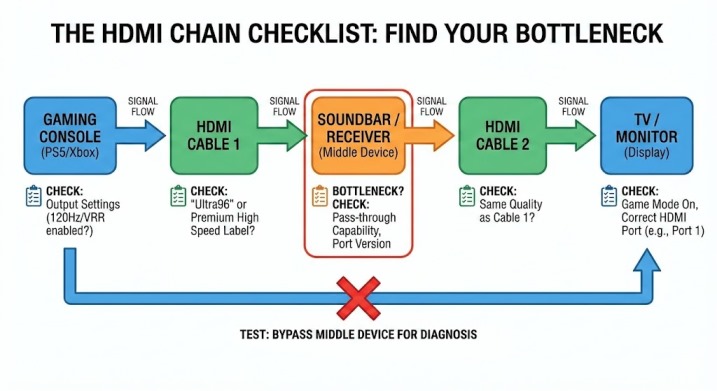
In our testing of modern consoles, most ‘my console can’t do 120Hz’ errors are actually caused by cable, port, or internal setting mismatches.
What the official sources say
- Sony explains that TVs supporting HDMI 2.1 features can output PS5 content up to 4K 120 FPS, depending on the game.
- Microsoft similarly notes that “4K at up to 120FPS” requires supported content and a compatible display.
- The HDMI Forum confirms HDMI 2.2 (released June 25, 2025) and introduces “Ultra96” for higher bandwidth products—useful for future formats, not required for most 2026 living-room setups.
A quick, reliable test (10 minutes)
- Plug the console directly into the TV/monitor (bypass receiver/soundbar).
- Enable the TV’s game/low-latency mode and select the correct HDMI port (many TVs reserve full features for specific ports).
- Check the console’s video output status screen for refresh rate and feature flags.
If 120Hz works when direct-connected but fails when routed through another device, that middle device is the bottleneck. Keep your baseline simple first, then add complexity.
If you own a console featured on EuroGamersOnline, keep this rule in mind: a great console can’t override an incompatible display chain.
3) Audio: clarity first, then volume discipline
A headset should help you hear details at lower volume—not push you toward risky levels. The World Health Organization notes you can safely listen at 80 dB for up to 40 hours/week, but at 90 dB safe time drops to 4 hours/week.
Practical buying checks:
- Comfort over long sessions (clamp force, ear pad heat)
- Microphone clarity (your teammates can understand you)
- Easy mute/volume controls
If a headset’s “wow” factor is mainly bass at high volume, treat that as a caution sign, not an upgrade.
Also Read: The Tech Framework: Driving Mobile Gaming Experience
4) Controls and ergonomics: the upgrades you feel every day
Input gear is personal, but you can still shop logically:
- Choose a mouse shape that matches your grip and doesn’t force wrist angle.
- Choose a keyboard layout that fits your desk and posture, not just aesthetics.
- Anchor the setup with a stable desk height and screen position.
Here’s a simple ergonomic check: elbows near 90°, wrists neutral, screen top near eye level, shoulders relaxed. Whether you are optimizing for a desk, couch, or portable setup, treat posture and reach as ‘core specs’—every bit as vital as your refresh rate.
5) PC performance: buy stable, then tune latency
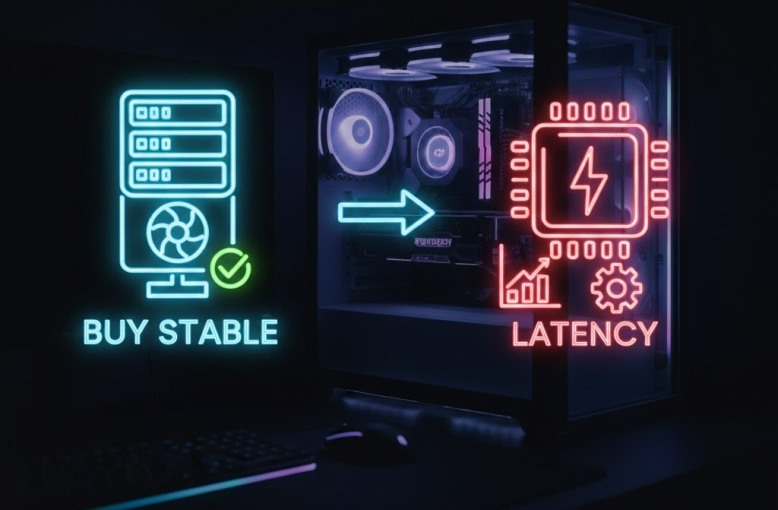
If you’re shopping for a PC, focus first on stability: adequate cooling, clear specs, and a warranty you understand. For competitive play, low latency matters, but only when it’s supported properly.
NVIDIA explains that the Reflex SDK helps games submit work “just in time” for rendering—reducing the render queue and system latency in supported titles. The key word is supported: don’t assume every game benefits, and re-check settings after major driver/game updates.
6) Cloud play: test your network before buying add-ons
Cloud gaming can be convenient, but it is only as strong as your connection where you actually play. Microsoft’s Xbox updates highlight expanding cloud play options (including streaming owned games on supported devices and “cloud playable” filtering).
If you’re evaluating Xbox cloud gaming performance, test at your peak play time:
- Moving closer to the router
- Switching to Ethernet if possible
- Reducing other heavy network usage during play sessions
Only after testing should you consider new networking hardware.
Conclusion
A dominant 2026 gear setup demands evidence, not marketing jargon: validate your display chain end to end, safeguard your hearing with measured volume limits, lock in ergonomic comfort for marathon sessions, and invest in latency reductions or cloud upgrades only when benchmarks confirm the difference. That disciplined approach shields readers from expensive regret while delivering a setup that performs noticeably better where it counts. And if you’re planning gaming nights with the consoles featured here on EuroGamersOnline with friends, remember that reliability—solid cables, fully charged controllers, locked-in settings—consistently outperforms flashy extras that fail mid-session.
FAQs
1) What’s the first upgrade most people should make?
Fix the biggest daily pain point first (display, audio clarity, comfort, or Wi-Fi stability).
2) Do I need HDMI 2.2 for gaming in 2026?
Usually no; HDMI 2.2 is newer (2025) and mainly benefits future high-bandwidth formats.
3) Why won’t 120Hz turn on even if my console supports it?
A TV port, cable, receiver pass-through, or game support may be limiting it.
4) How loud is “too loud” for long sessions?
WHO guidance: around 80 dB for up to 40 hours/week; 90 dB drops to 4 hours/week.
5) Is low-latency tech like Reflex always worth enabling?
Only when the game supports it and you verify it improves responsiveness on your setup.
